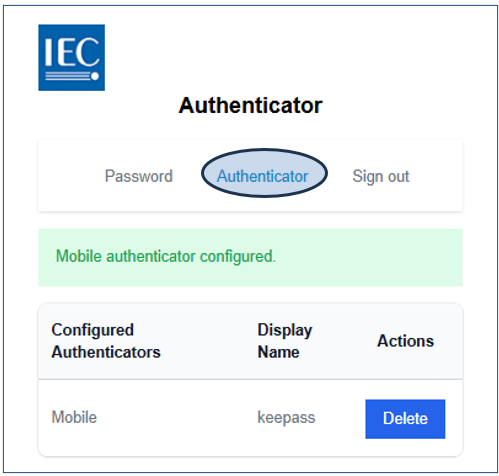
Below are instructions for configuring a Multi-Factor Authentication (MFA) method as the second layer of security for your IEC account (aka “IEC Login”).
To complete the setup, you will need a smartphone and an authenticator mobile application.
If you do not already have one installed, the IEC Secretariat IT team recommends using Microsoft Authenticator.
https://www.microsoft.com/security/mobile-authenticator-app
1 Setup your EMS account
-
Log in to the Expert Management System
-
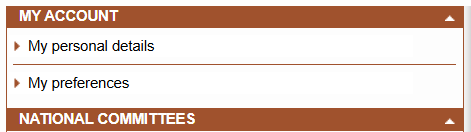
Access My personal details:
-
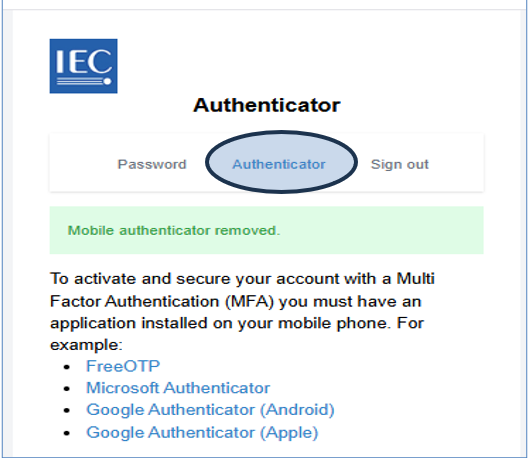
Click on the Change Authenticator button:

-
The Authenticator dialog box appears:
2 Setup your Authenticator app (smartphone)
-
Open your Authenticator mobile application (e.g. Microsoft Authenticator).
-
Scan the QRcode from IEC Authenticator (see 1.4).
-
When done, return to your computer/device to finalize your EMS account.
3 Finalize your EMS account
-
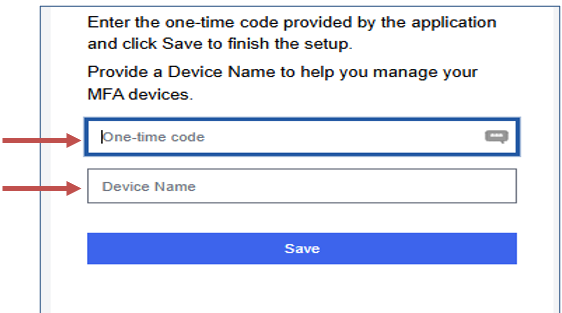
Complete the onscreen information with the requested data:
-
One-time code: code provided by the Authenticator mobile application.
-
Device Name: enter a name that will help you remember which device this relates to (e.g. your smartphone).