There are two types of formulae that can be added:
-
Formal formula: have a number and possibly a formula key
-
Inline formula: are not numbered and do not have a formula key.
1 Adding a numbered formula
-
To add a formula, put your cursor to the location where the formula should be inserted and select Formula from the INSERT tab.
-
A pop-up window with the equation editor will appear. Use the elements in the different tabs of the equation editor menu to enter your equation.
-
Then click Save to insert the formula into your document:

2 Adding an inline formula
-
To add a mathematical expression in the flow of the text, i.e. an inline formula, place your cursor where you want to insert the equation.
-
Go to the INSERT tab, select Formula and then Inline formula from the options.
-
In the formula editor pop up, type your formula and click the Save button to insert the formula inline with your text:

3 Editing a formula
-
You can edit an equation by right-clicking it and selecting Edit formula.
-
You can also use the drawing tool to design your equations with the mouse or a pencil pad:

4 Adding a note to a formula
-
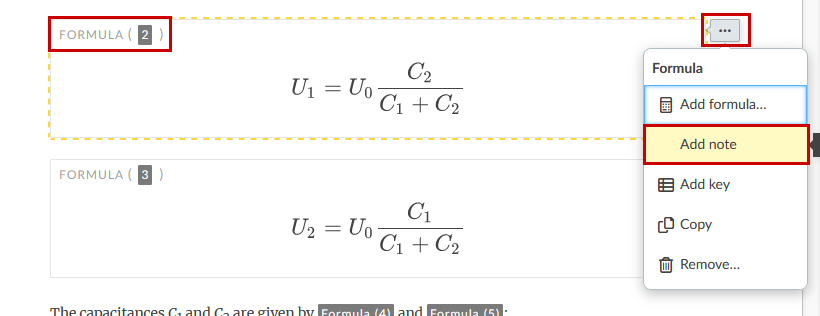
You can also add a note to a formula by clicking on the context menu at the top right of the formula section and selecting Add note:
Please note
The formula will be automatically incrementally numbered and inserted in the editor.
5 Adding a key to a formula
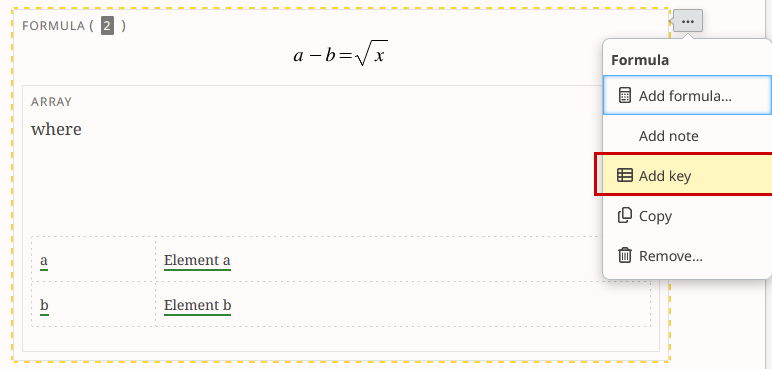
You can add a key to the formula by clicking on the context menu on the top right of the formula section and select Add key: