
1 Copy/Cut/Paste text from MS Word
-
It is possible to copy and paste text from MS Word into the online editor and vice versa.
-
It is also possible to cut, copy, paste hyperlinks from word to the online editor.
-
When a selected text is pasted, the formatting is retained and automatically translated to XML.
Please Note
Double-check the text you pasted as, depending on your operating system and the version of MS Word yo are using, it is possible that special characters or sub-/ superscript formatting is not retained correctly.
Overview of functionality of copy/paste operations:
|
Copy-paste |
Result |
Comment |
|
|
Plain text and formatting text |
OK Bold, italic, superscript, subscript, Not OK: underline text, strike through |
|
|
|
List – bullets/dashes |
List- dashes, using OSD styles (including sublevels) |
|
|
|
List – numbered |
List- numbered, using OSD styles (including sublevels) |
|
|
|
Table |
OK |
|
|
|
Figure |
Not OK |
Should use insert graphic feature |
|
|
External link
|
OK |
|
|
|
Bibliographic references |
Not OK |
|
|
|
MS Word cross references to Tables, Clause, Figure, Annex |
Not OK |
|
|
|
Clauses and other structural elements such as Annex or Term entry |
Not OK |
It is only possible to select the text of a Clause/Annex/term entry and then copy and paste it elsewhere in the document. |
|
|
Footnotes |
Not OK |
|
|
2 Copy/Cut/Paste from within a single OSD document
-
You can select any word, sentence or paragraph and use CTRL+C/X to copy/cut, and then CTRL+V to paste your text.
-
You can also cut/copy and paste entire XML elements (like a table, note, graphic or equation). Either
-
put your cursor inside the element you want to cut/copy, then click on the element name from the navigation bar at the bottom to select the entire element
-
once the element is selected, it becomes entirely yellow. You can then press CTRL+C/X and then CLTR+V in order to cut/copy paste it anywhere inside your publication.
-
-
OR use the copy option from the contextual menu:
-
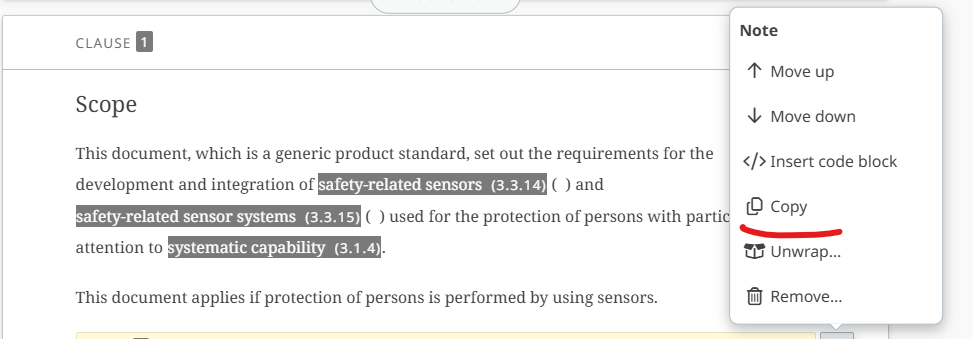
Overview of functionality of copy/paste operations:
Please note that the features below do not necessarily work between OSD Documents.
|
Copy-paste |
Result |
Comment |
|
Plain text |
OK |
|
|
Formatting text (bold, italic, underline text, superscript, subscript, strike through, etc.) |
OK |
|
|
Numbered and unnumbered list |
OK |
|
|
External link |
OK |
|
|
Table with or without title |
OK |
|
|
Cross references to Table, Clause, Figure, Annex |
OK |
|
|
Abbreviations list |
OK |
|
|
Note, Example, Warning |
OK |
|
|
Code |
OK |
|
|
Long quote |
OK |
|
|
Entire Clause, Annex, Term entry |
Not OK |
It is only possible to select the text of a Clause/Annex/Term entry and then copy and paste it elsewhere in the document. |
|
Entries in the Normative and Bibliographic section |
Not OK |
These sections are not editable. |
|
Normative and Bibliographic citations in the text |
OK |
These are preserved. |
|
Footnotes |
Not OK |
It is only possible to select the text of a footnote and then copy and paste it elsewhere in the document. |
3 Copy/Cut/Paste within a single OSD document AND from one OSD document to another
Overview of functionality of copy/paste operations:
|
Copy-paste |
Result |
Comment |
|
Plain text |
OK |
|
|
Formatted text (bold, italic, underline text, superscript, subscript, strike through, etc.) |
OK |
Formatted text is preserved |
|
Numbered and unnumbered list |
OK |
Numbering and structure is preserved |
|
External links |
OK |
|
|
Table with or without title |
OK |
|
|
Cross references to Table, Clause, Figure, Annex |
Not OK |
|
|
Abbreviations list |
OK |
|
|
Note, Example, Warning |
OK |
|
|
Code |
OK |
|
|
Long quote |
OK |
|
|
Clause, Annex, Term entry |
Not OK |
It is only possible to select the Clause/Annex/Term entry content, copy and paste it in another document. |
|
Entries in the Normative and Bibliographic section |
Not OK |
These sections are not editable. |
|
Normative and Bibliographic citations in the text |
Not OK |
|
|
Footnotes |
Not OK
|
It is only possible to select the text of a footnote and then copy and paste it elsewhere in the document. |