1 Adding a clause
-
Every clause must be added in the correct place in the document hierarchy.
-
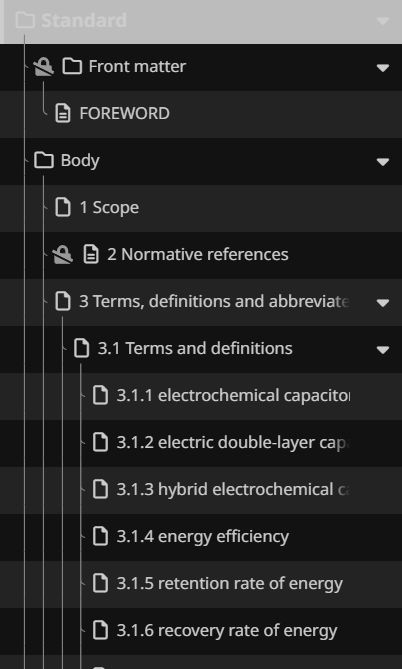
The document hierarchy can be seen in the Outline tab on the left-hand panel:
-
Buttons to create relevant clauses and subclauses are available under every applicable clause.
-
Buttons to create + CLAUSE AT SAME LEVEL, and + SUBCLAUSE are available under any applicable clause.
-
Terms and Definition clause
-
Buttons to create + SUBCLAUSE and + TERM ENTRY are available under the Terms and Definition clause.
-
Buttons to create + CLAUSE AT SAME LEVEL and + TERM ENTRY are available in the subclauses under Terms and Definition clause.
-
Button to create + TERM ENTRY AT SAME LEVEL is available under a terminological entry.
-
-
Annex
-
Buttons to create + ANNEX AT SAME LEVEL and + SUBCLAUSE are available in the Annex section.
-
Buttons to create + CLAUSE AT SAME LEVEL, and + SUBCLAUSE are available under the Annex subclauses.
-
-
It is also possible to create clauses and subclauses from the contextual menu of a clause in the Outline tab.
-
|
Selection |
Action |
|---|---|
|
...at the same level |
Will add a clause at the same level as the one you are in. Example: add a clause at the same level on clause 8 will add clause 9. |
|
...at the level below |
Will add a clause one level below the clause you are in. If there are existing children to the clause, the new clause will be added at the end. Example: add clause at the level below on clause 8 will add clause 8.1. |
Please note
-
It is not possible to:
-
add clauses and subclauses in
-
the Foreword,
-
in the Normative references clause
-
-
add a term clause at the same level as the main Terms and Definition clause.
-
-
Terminological entries can be inserted from anywhere in the document. The Term entry will automatically be added under clause 3 Terms and Definitions.

2 Removing a clause
-
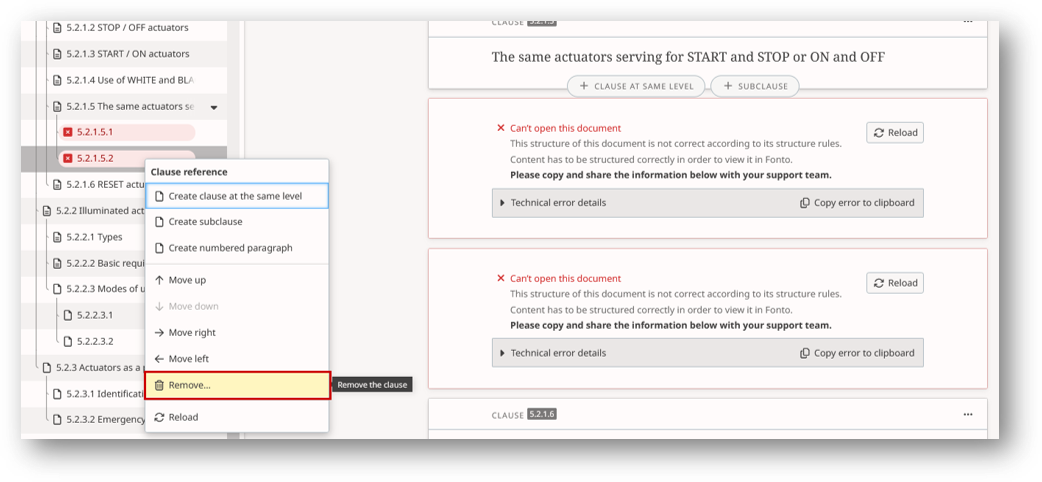
To delete a clause, select the contextual menu (three dot "..." menu) of the clause or the contextual menu of the clause in the Outline and select Remove.
-
Mandatory clauses such as Foreword and Normative References cannot be removed.

Warning
When trying to delete a clause or a subclause containing an unresolved comment, a warning message will appear as follows:

To proceed with the removal, you have two options:
-
Resolve comment
-
Reposition comment in another clause.
3 Re-ordering clauses
-
You can re-order clauses by dragging and dropping them in the Outline tab or by using the Move up, Move down, Move right, Move left options from the contextual menu of a clause.

Please note
-
It is possible to move a clause or alter its structure even if the clause has not been loaded.
-
To know if a clause has been loaded or not, check the icon next to the clause in the Outline:

4 Duplicating a clause
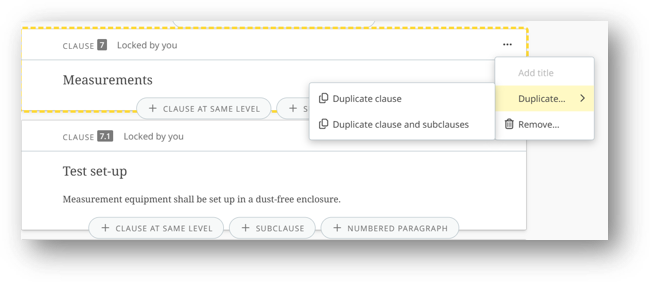
Duplication of clauses can be done via the navigation pane by right clicking on the clause as follows:
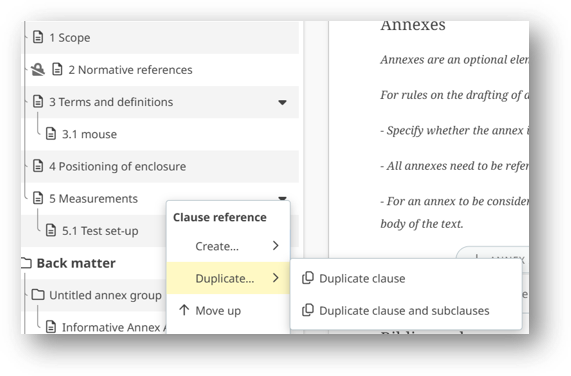
OR from the contextual menu as follows:
5 Deleting sections containing unsupported elements
Sections containing unsupported elements can be removed by right clicking on the section and clicking on Remove from the contextual menu: