
1 Locking a clause
-
OSD's online collaborative authoring has been designed so that multiple people can edit the same document at the same time without interfering with each other's in progress work.
-
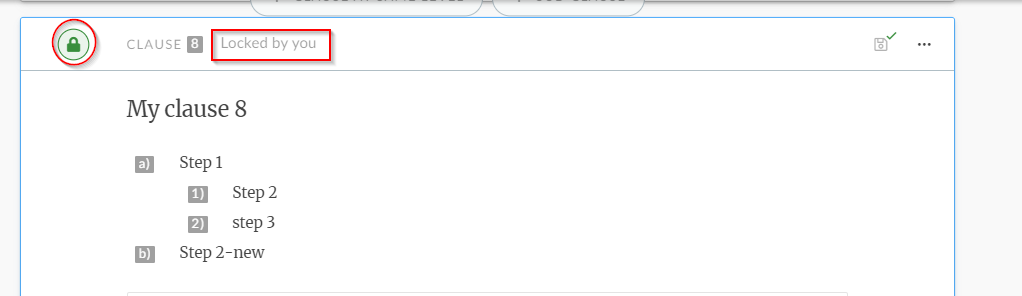
When you are editing a clause, you will see the lock icon appear on the left of the clause:
-
This means that no other user can edit the clause at the same time (as it is locked to you).
-
Other users will see (in read-only mode) the clause as it was before you started editing it.
2 Clauses locked by other users
-
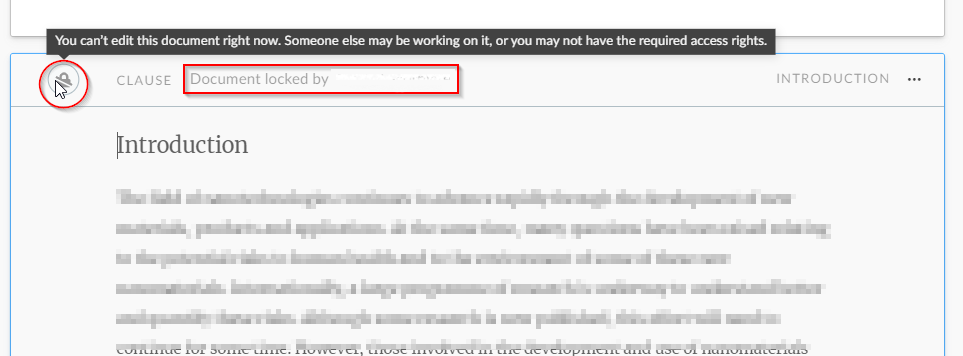
Clauses that are locked for editing will appear with a locked icon on the left of the clause:
3 Unlocking clauses
-
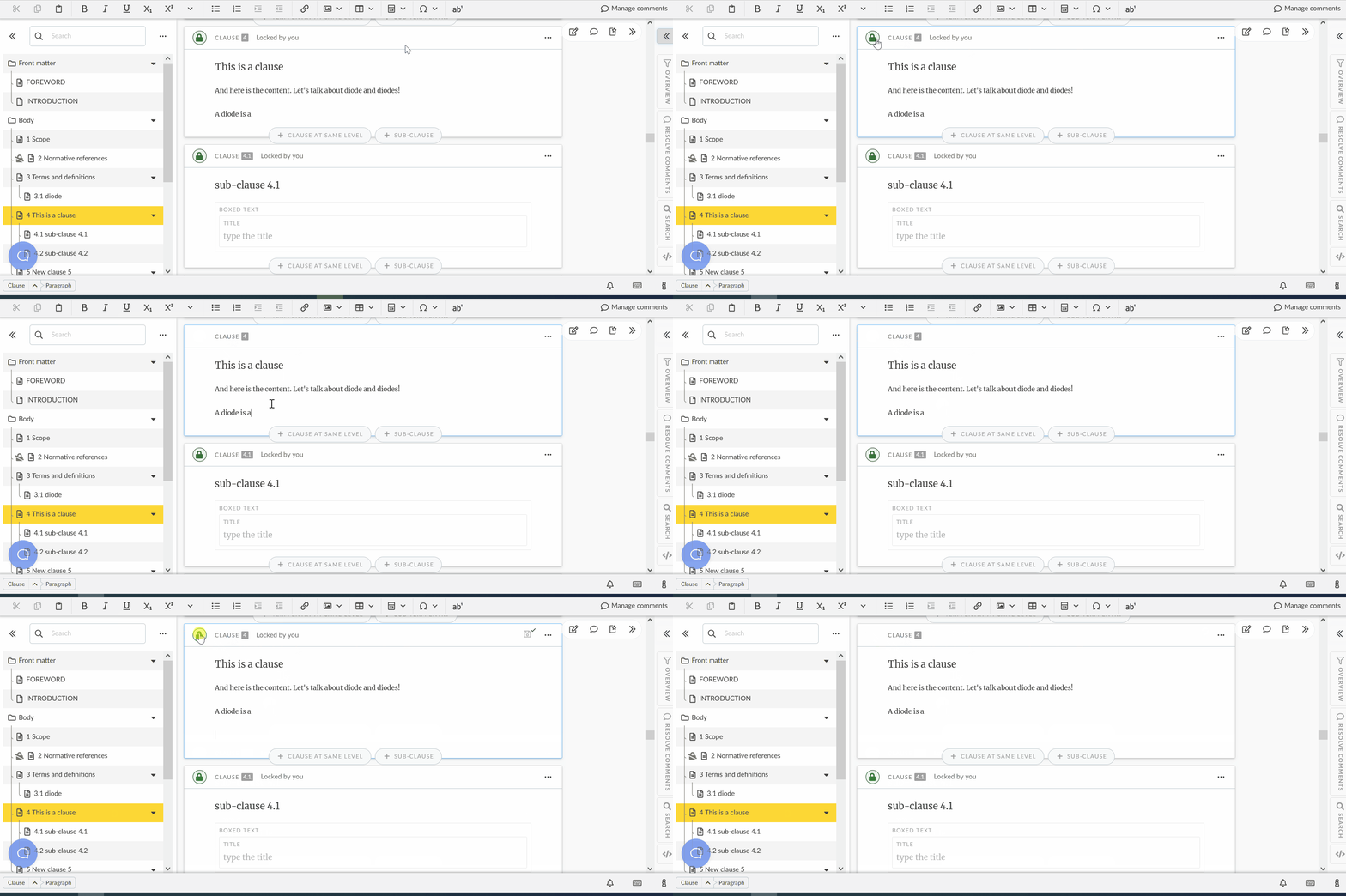
When you are finished editing, release the lock on the clause to publish your changes and enable others to view the new version of the clause.
-
To release your clause, click on the padlock of the clause to unlock.
-
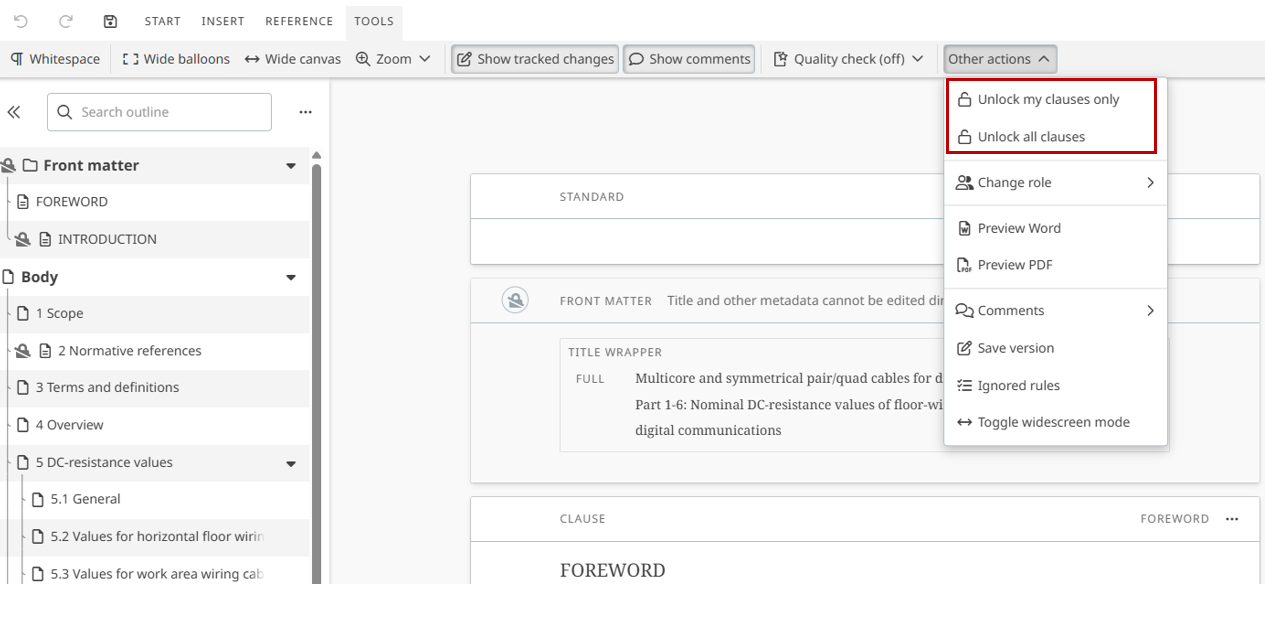
To unlock all clauses locked by you in the project, go to "Unlock all my clauses" under "Tools":
Please note:
Only Leaders can unlock clauses locked by another user.
Only Leaders can "unlock all clauses* of the document.