1 Hiding the outline
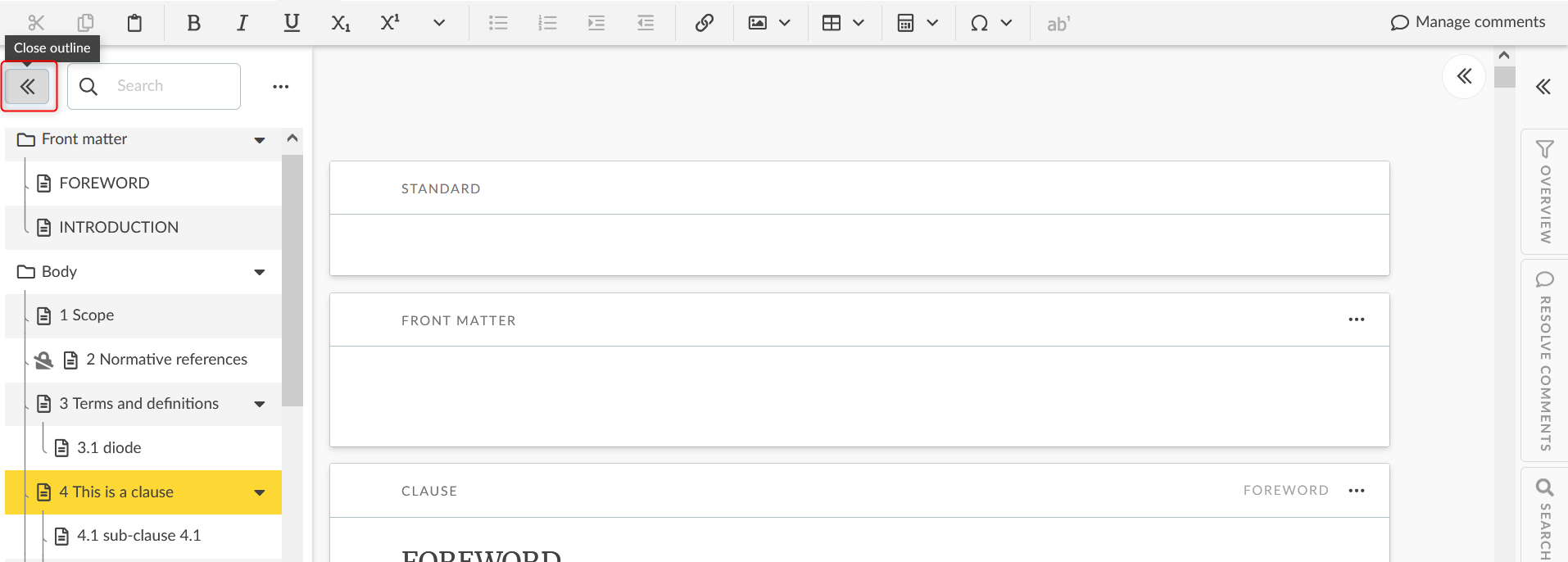
You can hide the outline by clicking on the arrow on the top of the screen (Tool tip = “Close outline”).
2 Tools tab
The TOOLS tab offers different ways of viewing your document:

|
Menu item |
Description |
|---|---|
|
Whitespace |
Visualize spaces as dots |
|
Wide balloons |
Make the commenting section wider to focus on comments |
|
Wide canvas |
Make the editor wider to focus on the document |
|
Zoom |
Increase/decrease the zoom for the editor pane |
|
Quality check |
Activate/deactivate the spell checker (off by default) |
|
Manage comments |
Access to the manage comments dashboard (permissions dependent) |
|
Other actions |
Access to other features available (depends on stage, permissions, etc.) |
3 Wide screen mode
The wide screen mode in the TOOLS tab will enable you to visualize your document without clause breaks. This helps give you a better impression of what your document will look like.

4 Commenting mode
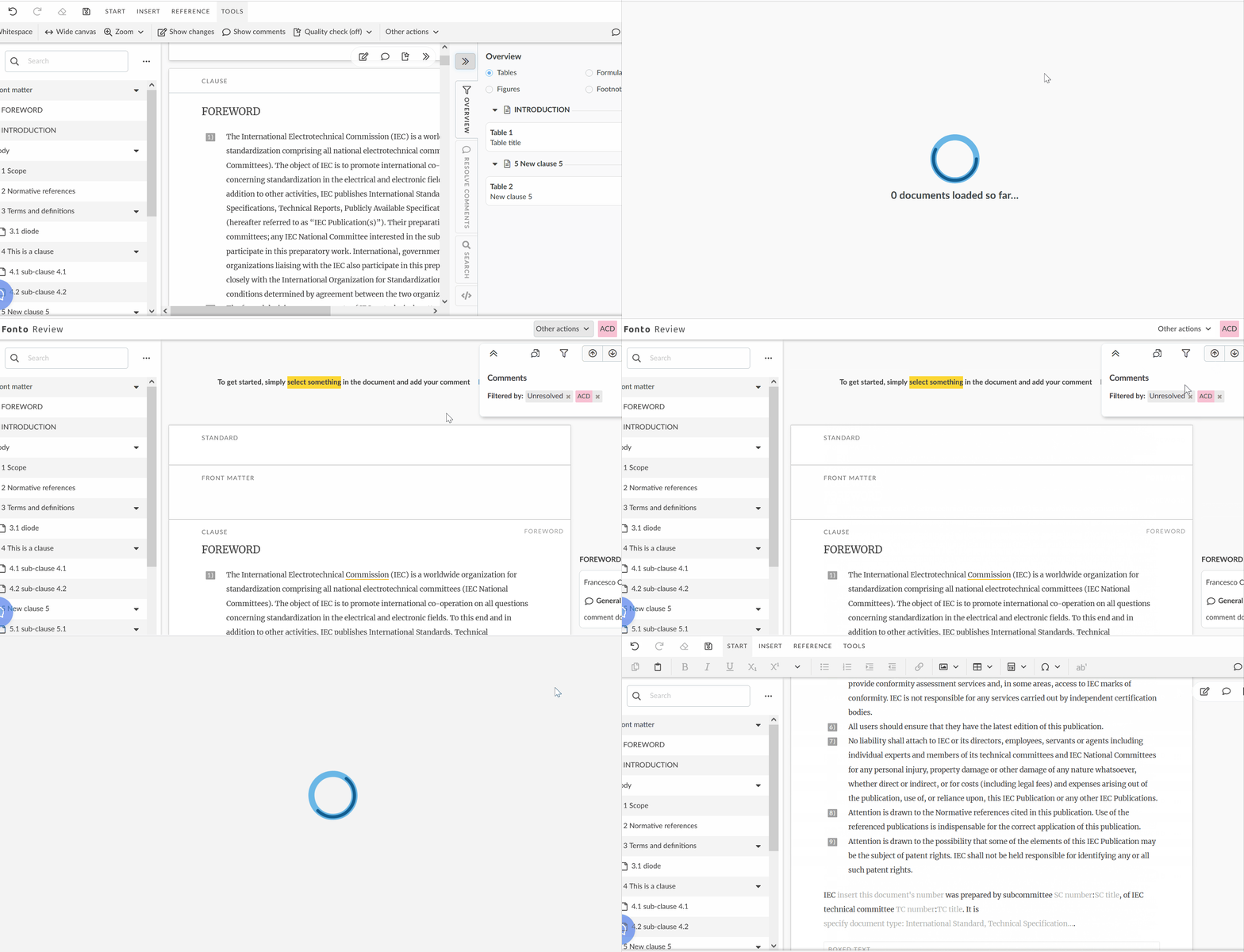
Commenting mode is enabled by default for contributors. Leaders and Authors can switch between default view/edit mode and commenting mode.
The commenting mode has limited features:
-
Document available in read only mode
-
Wide screen view mode activated by default
-
Simplified navigation panel:
5 Keyboard shortcuts
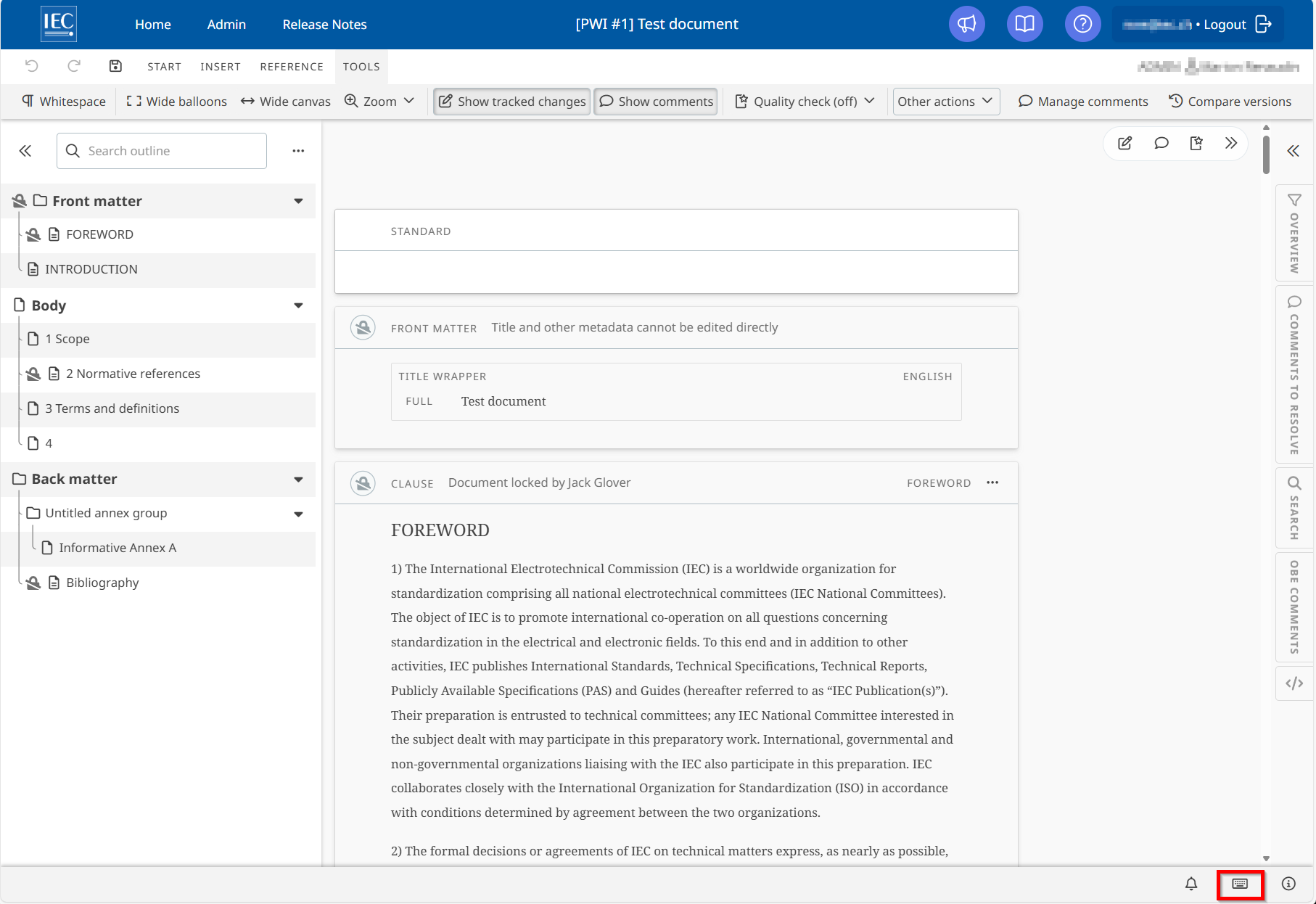
Keyboard shortcuts are available, to view those available please click on the small logo at the bottom right of the screen as follows:
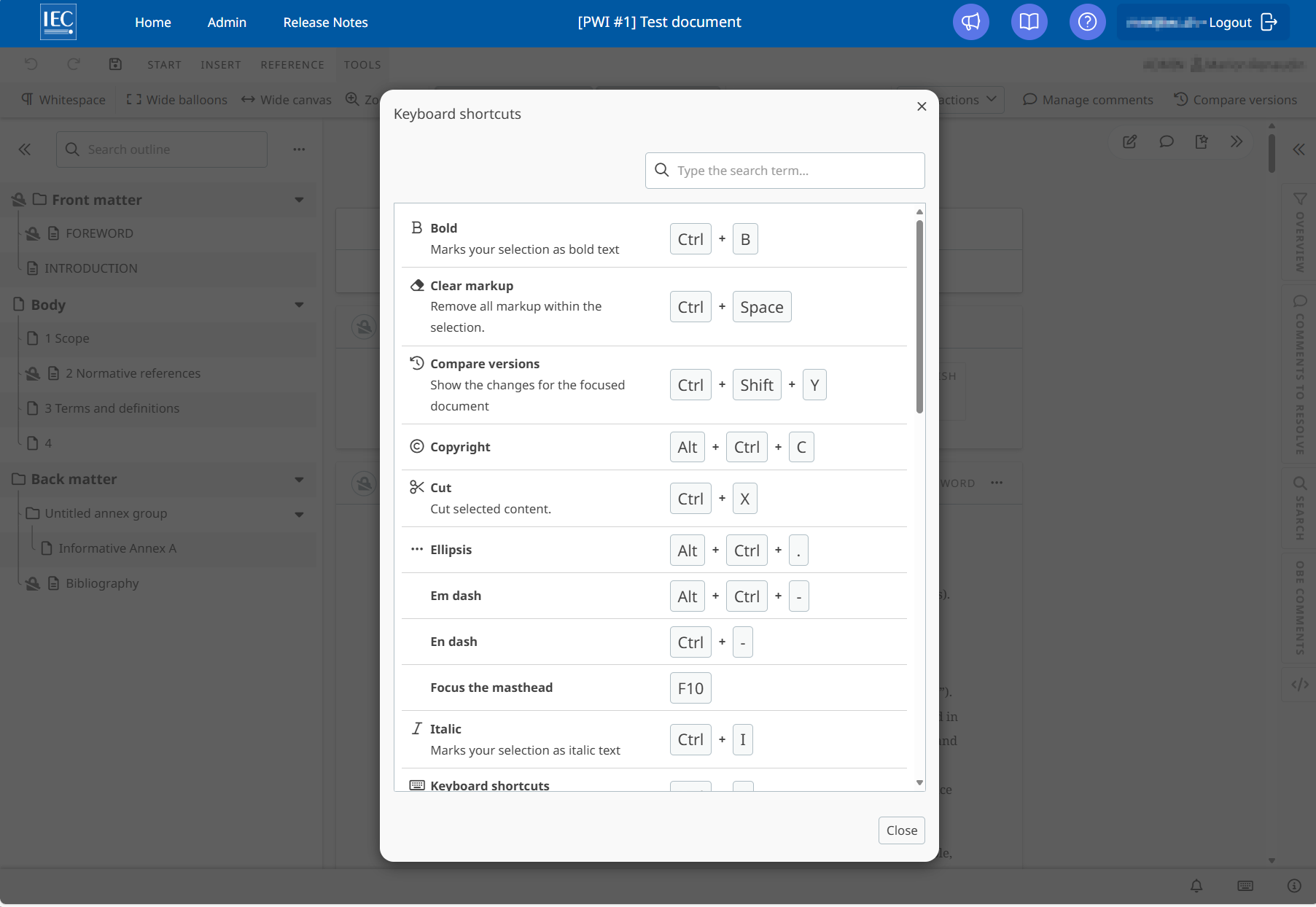
A pop window will appear to display the keyboard shortcuts available as follows:
6 Customizing interface localization
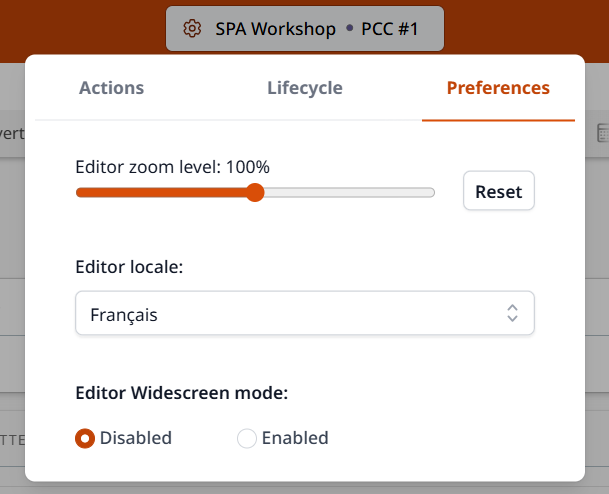
To set a locale for your user interface to translate labels and other tool components:
-
Click the document title or project code in the interface’s header
-
Select Preferences menu
-
Change Editor locale language for translation: