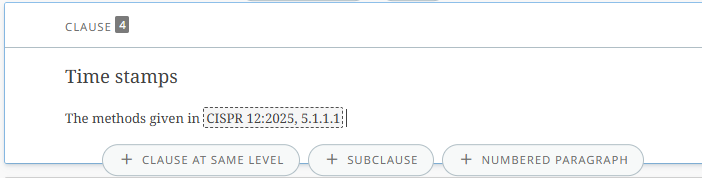
1 Reference to ISO/IEC/CENELEC standard
-
The clauses 2 Normative references and Bibliography are added to every project automatically and are not editable.
-
The lists of normative and bibliographic references are automatically populated when a reference is added in the document.
-
To reference an external document (ISO/IEC/CEN/CENELEC standard, other standard or book/journal reference) in the document:
-
Place the cursor in the appropriate place. Go to the REFERENCE tab, click on Link to reference and select either Normative reference or a Bibliographic reference.
-
Search and select an ISO/IEC/CEN/CENELEC standard by filtering and searching from the standards catalogue
OR
-
Search and Select from existing reference (that has been referenced elsewhere in the project).
-
Please note
-
ISO, IEC, CEN and CENELEC standards can be added by searching and filtering in the standard catalogue.
-
Standards from other sources, or book/journal references, have to be typed in manually.
-
You only have to add a reference once; you can then reuse it in other places of your document by choosing to select an existing.
-
The clause: Normative references cannot be deleted.
-
For normative references, the standard reference text will be inserted in the text.
-
For Bibliographic references the [number] of the reference will be added automatically.
2 References to a series or all parts of a series
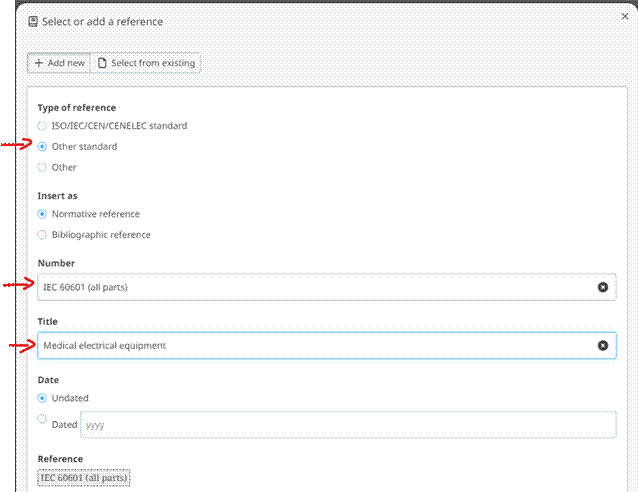
To add a reference to a series or all parts of a series, go to the REFERENCE tab, click on Link to reference and select Other and manually fill in the number and title fields:
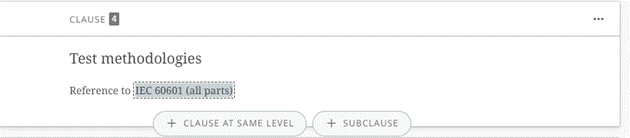
It will appear in the text as follows:
In normative references section, it will appear as follows:

3 Reference to other standards
-
To add a reference to another standard, select the reference type Other standard.
-
The reference will be added automatically to the Normative reference clause or Bibliography.


4 Other references (books, journals, websites)
-
For books, journals or websites, simply provide the title of the reference.
-
The title will be automatically added to the Normative reference clause or the Bibliography.


5 Modifying references
-
To modify a normative reference: go to the Normative references clause.
-
To modify a bibliographic reference, go to the Bibliography clause.
-
References from the catalogue can be replaced via the Delete option, other items can be edited using the Edit option:


6 Deleting references
To delete a bibliographic reference, go to the Bibliography clause:
-
Select the Delete icon next to the reference
-
Select the Continue button in the pop-up message that appears
-
Select the clause or sub-clause where it is referred (one-by-one) and select the Delete button
-
Now click on the Delete reference button:

You can also delete a reference directly from the text by clicking on the reference, then clicking on Remove.
7 Reviewing for broken references
To review if the document contains broken references, use the Referencing options in the quality check tool.
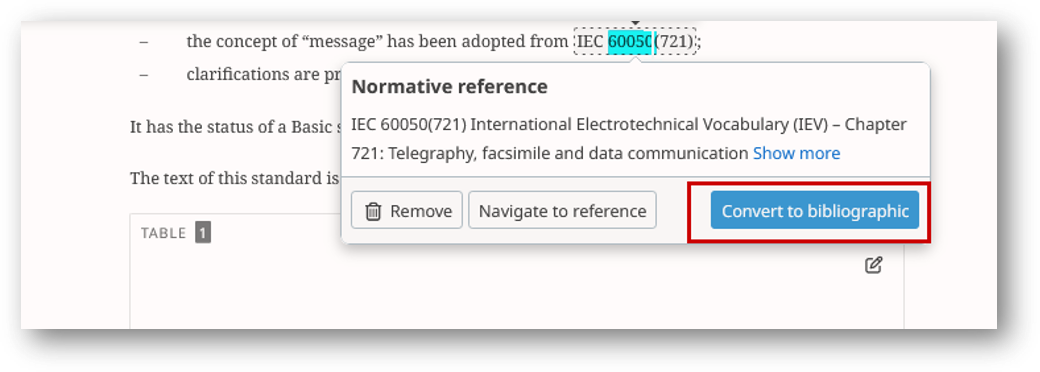
8 Converting a bibliographic reference to normative and vice versa
Selecting the reference in the text gives the option to convert:
9 Listing occurrences of references
-
You can visualise the occurrences of a Normative or Bibliographical references by clicking on the three dots on the reference, then click list occurrences. It is possible to list the occurrences of citations in the text.
-
Go to the Normative references or Bibliography reference list, then select the more actions menu, then List occurrences:

A pop-up window will appear showing the occurrences in the text.

10 Adding cross-references to elements
To link to a specific element:
-
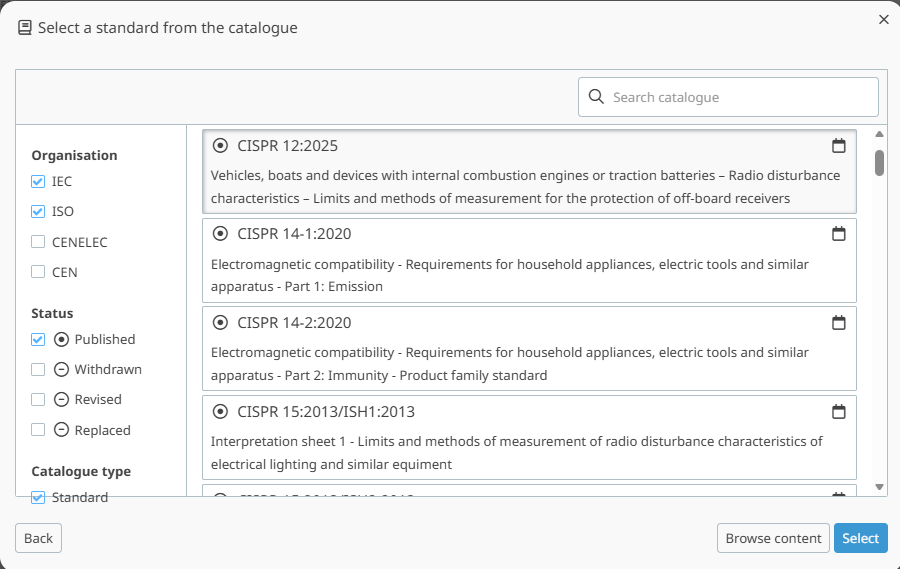
Select the document to be referenced:
-
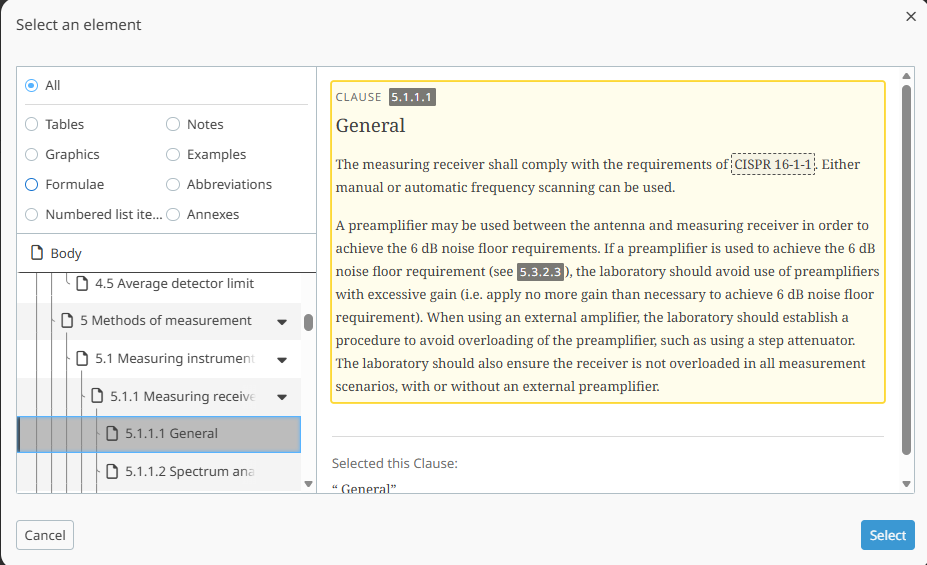
Choose to Select an element, navigate to the element and then Select:
-
The reference will include the element (clause, table, figure):