Locate the Collaboration Platform (CP) workspace and the folder with the document you would like to manage with versioning.
-
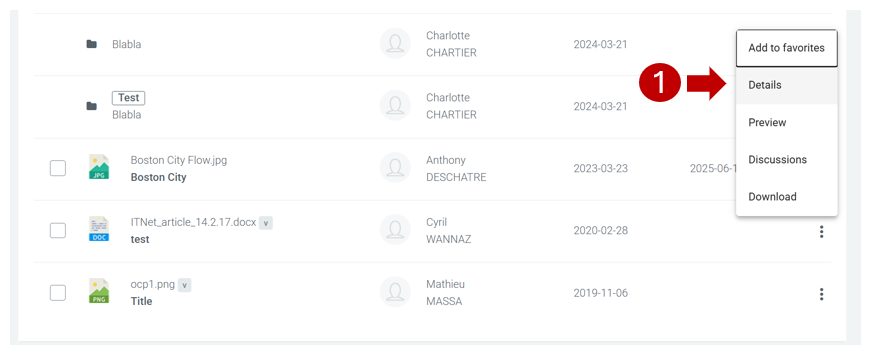
Click on the DETAILS option in the three dots, contextual, menu in the folder line you want to edit:
-
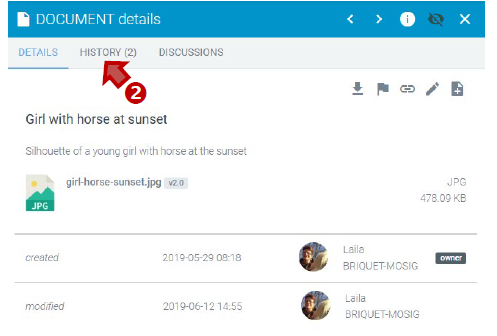
In the document details panel, click on the HISTORY tab:
-
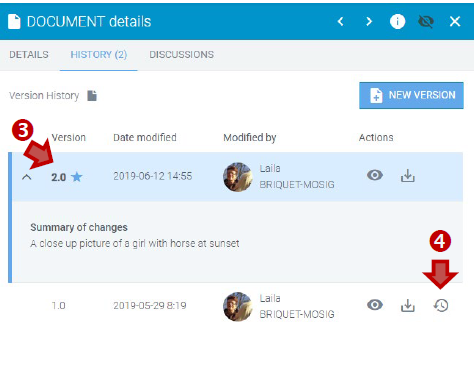
The current version is the top row and is highlighted in blue.
-
Click on the restore icon next to the version you want to restore as the current version:
-
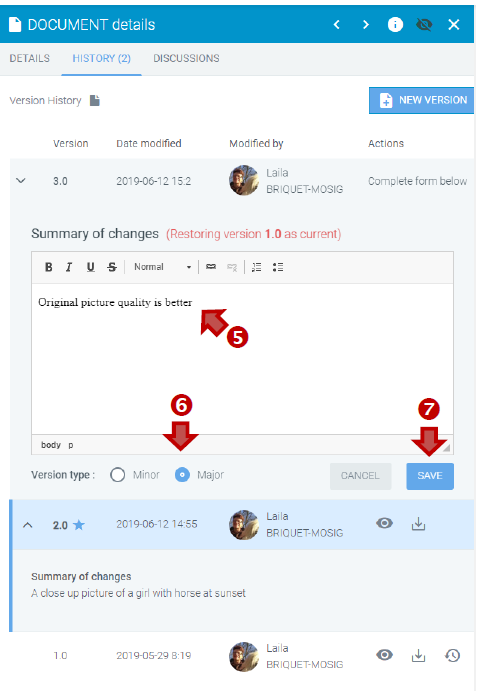
Enter a brief Summary of changes, explaining differences or justification of changes.
-
Select the Version type (Minor or Major).
-
Press the SAVE button to restore the file as the current version: