1 Adding notes and examples
Notes/Examples can be added almost anywhere in the document text.
To add Notes/Examples on individual elements (like terminological entries or in table footers):
-
right-click on the element
OR
-
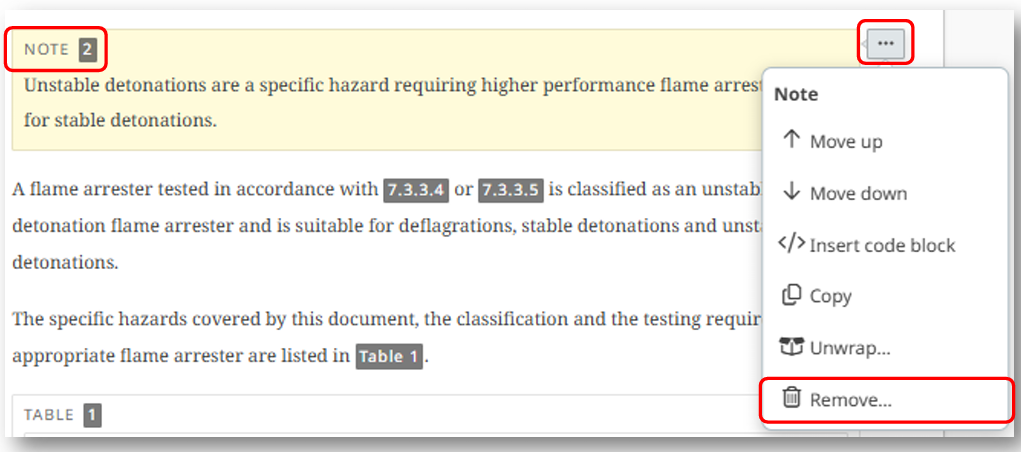
click on the contextual menu of the element and then select Note or Example.
More generally, to add notes or examples anywhere in the document, select the Note or Example item from the INSERT menu:


Please Note
Notes and examples, like many other elements of the tool, are automatically numbered in each clause.
It is not possible to copy notes and examples from outside of Terms and definitions into the Terms and definitions clause. This is as that clause has different note types, therefore, only note to entry and examples from term entries are allowed.
-
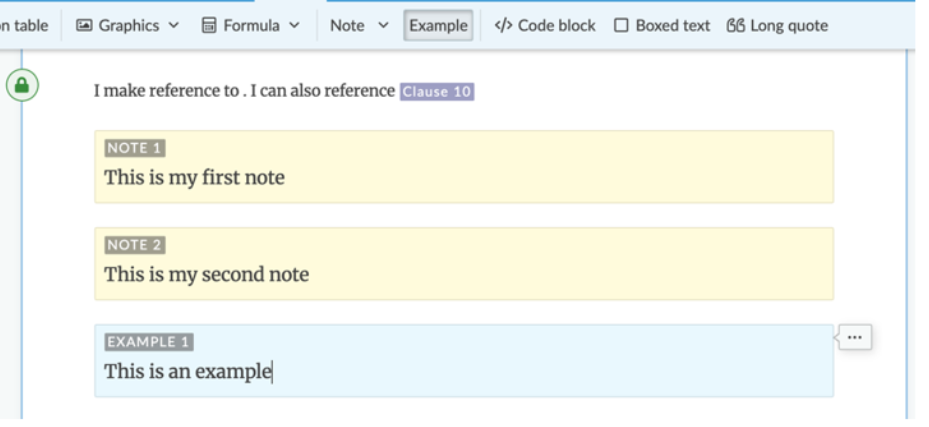
The Note/Example container will appear in the text. It is important to use the Note/ Example elements rather than just typing the word "note" or "example" in the text, as Note/Example elements are formatted in a standard way downstream and can also be processed by machines.
Please Note
If there is more than one note or example inside a clause, the system will automatically number them sequentially, i.e. Note 1, Note 2 or Example 1, Example 2.
Caution, important and warning are not numbered even if there are multiple elements in a clause.
-
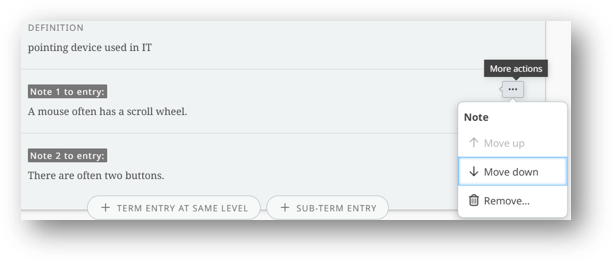
Notes can be reordered by moving them as follows:
2 Wrapping and unwrapping elements
You can use the Unwrap function on Notes and Examples to transform them into plain text:

3 Adding a warning
You can insert Warnings within your text.
-
Select Warning from the INSERT menu:

4 Editing a warning
-
To edit a warning:
-
select the three dot, contextual menu, to show More actions
-
click the action you would like to perform:
-

5 Moving elements, examples, notes and warnings
Elements, examples, notes and warnings can be moved up and down in the text using the option in the contextual menu:

6 Inserting code elements
Place your cursor inside the text, then select Code from the INSERT tab:

7 Removing notes, examples, code blocks, warnings and long quotes
Such elements can be removed from the relevant contextual menu, for example: