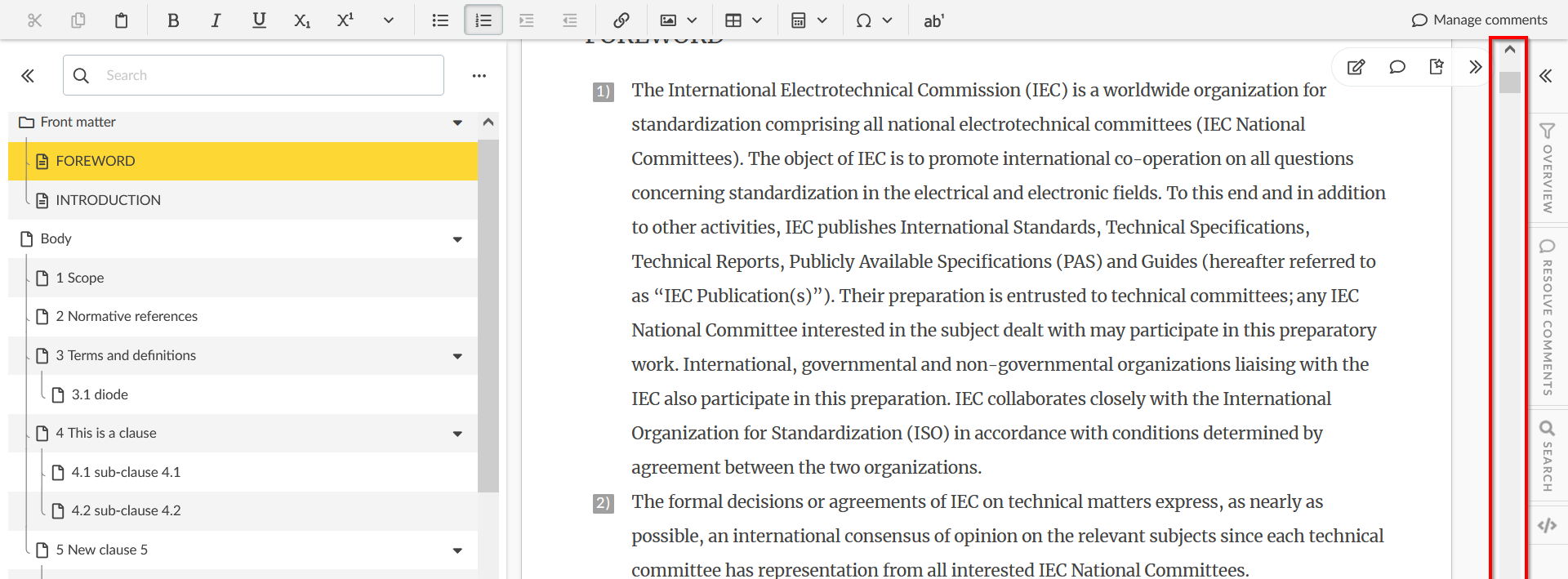
1 Scrolling through the document
To navigate through your publication, use your mouse/trackpad or the scroll bar on the right-hand side of the screen:
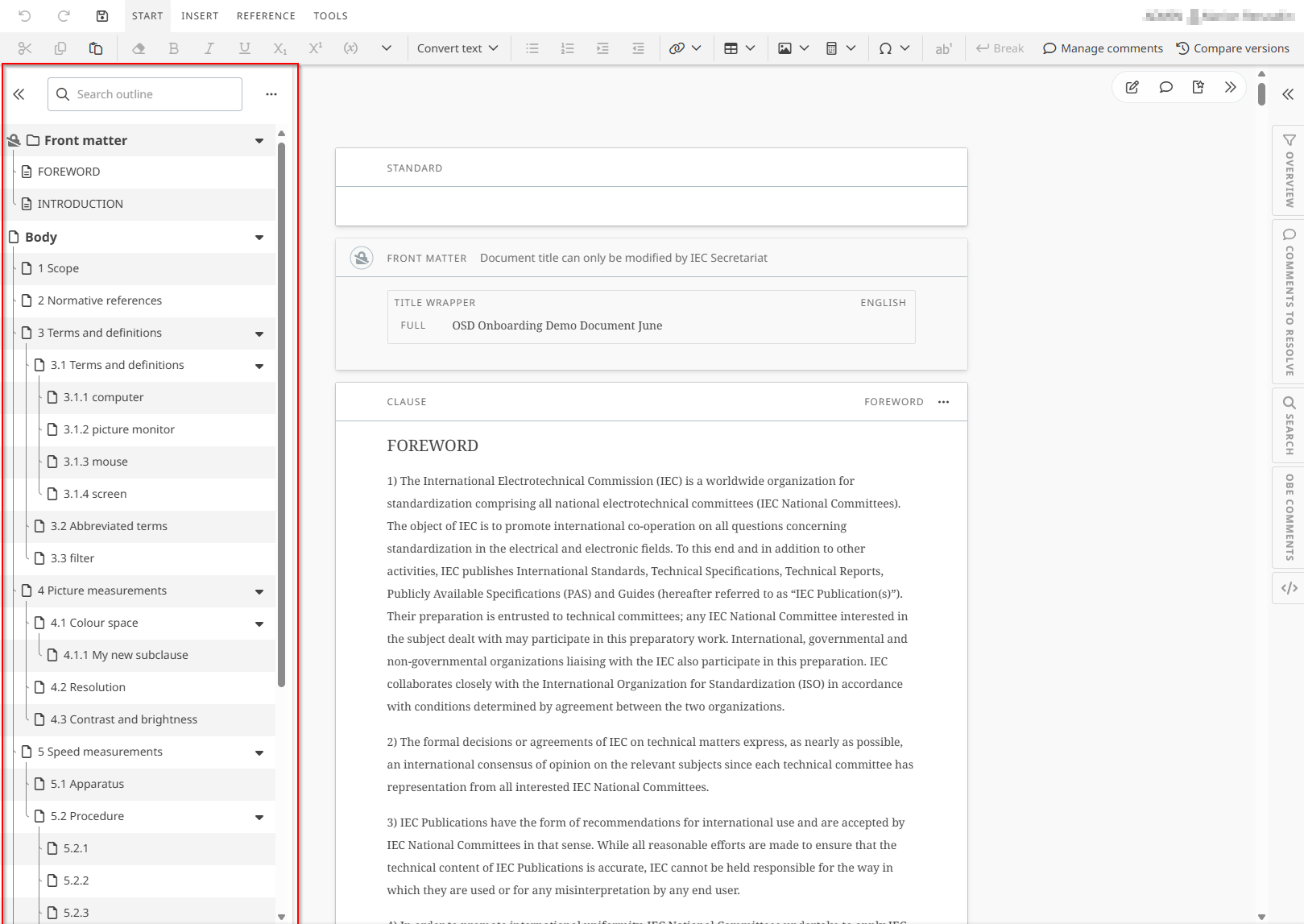
2 Viewing your document structure
-
The outline tab is the table of contents for your document.
-
Outline shows all clauses (at all levels) as a hierarchic tree:
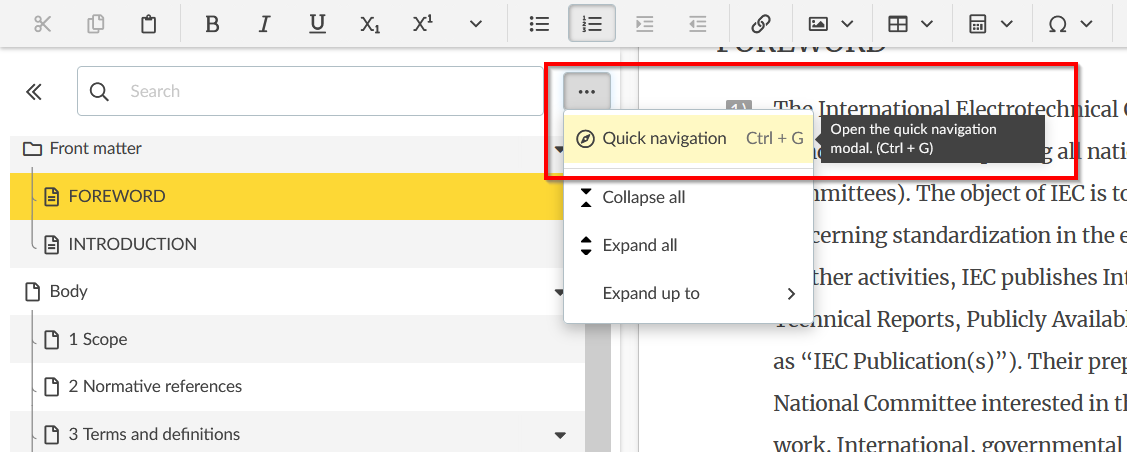
3 Quick navigation
-
The Quick navigation in the outline tab allows you to navigate towards the subdivisions of the document.
-
Type in the search window the term to look it up in the outline for quick access.
-
As you type, search results will be displayed, and you can click on a search result to immediately navigate to the location in the document.
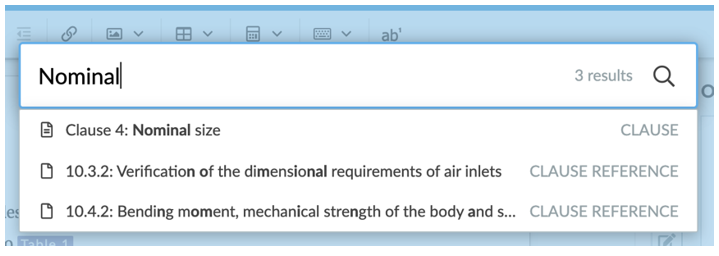
To search in the text itself, use the search tab on the right:

See the related article: Search and replace
4 Navigating by elements
-
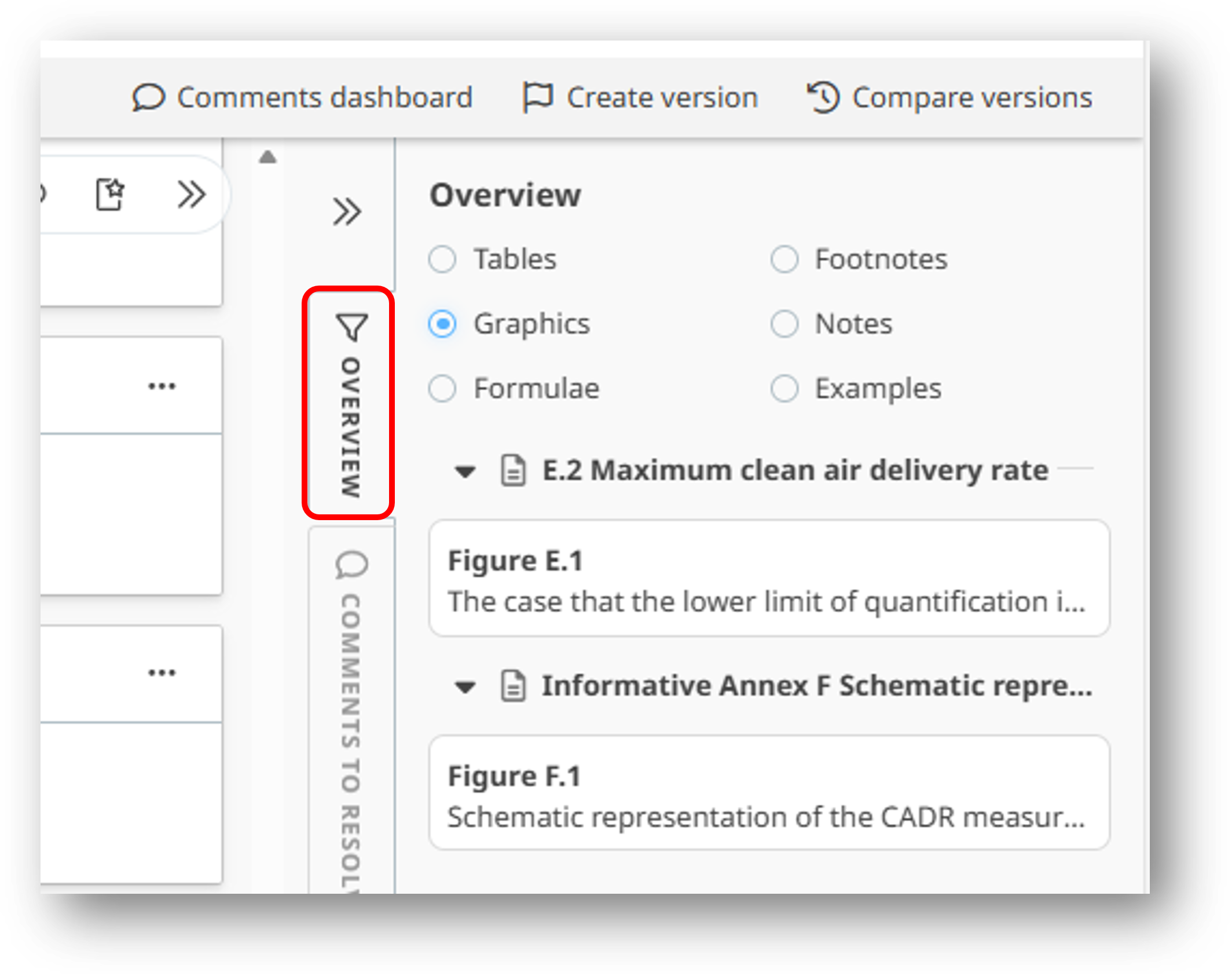
The OVERVIEW tab lists specific elements in your document for easy access and navigation.
-
You can filter to see all:
-
Tables
-
Graphics [figures, fig groups, images and inline images]
-
Formulae [including inline formulae]
-
Footnotes [including table and figure footnotes]
-
Notes
-
OR Examples
-
-
with their respective locations in the document. Clicking on an element will navigate to the correct location in the document.
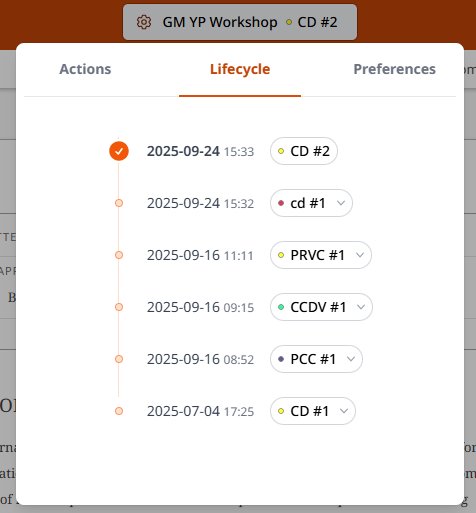
5 Viewing lifecycle history
To check the project’s current stage, and the progress through previous stages:
-
Click the document title or project code in the interface’s header
-
Select Lifecycle menu: