Please note
In this article, we will describe how leaders can manage comments, topics, and tags from the manage comments dashboard.
1 Manage comments dashboard
-
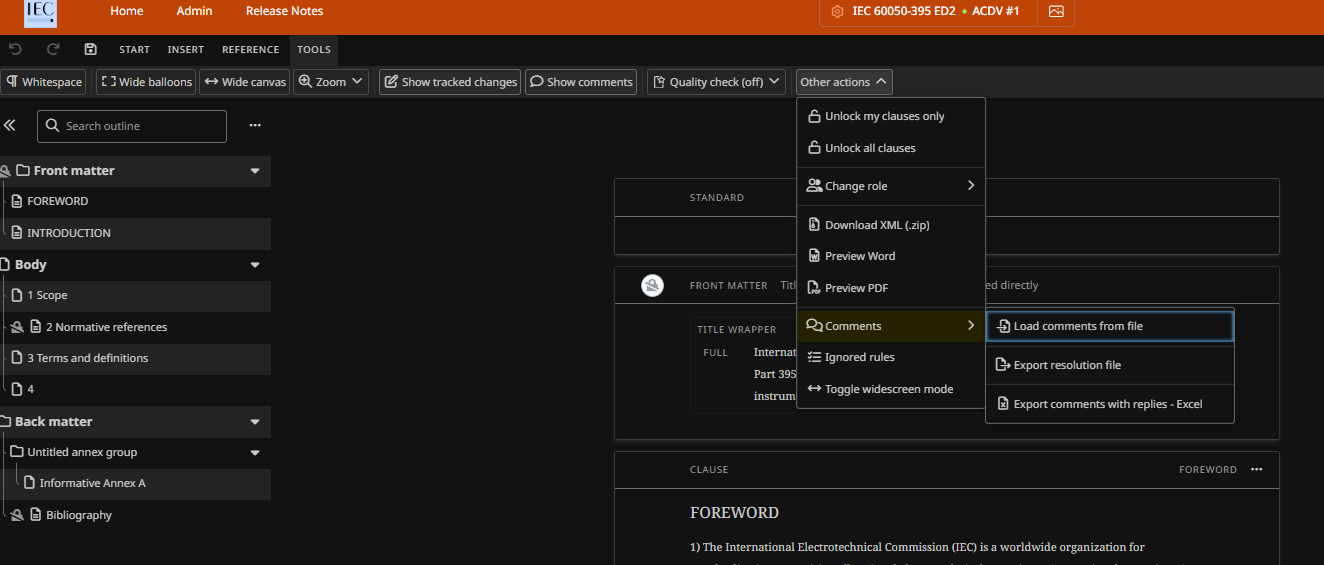
A dashboard to manage comments is available to project members with Leader roles in the OSD platform. To access it:
-
Go to TOOLS menu.
-
Click on Manage comments:
-

2 Dashboard overview
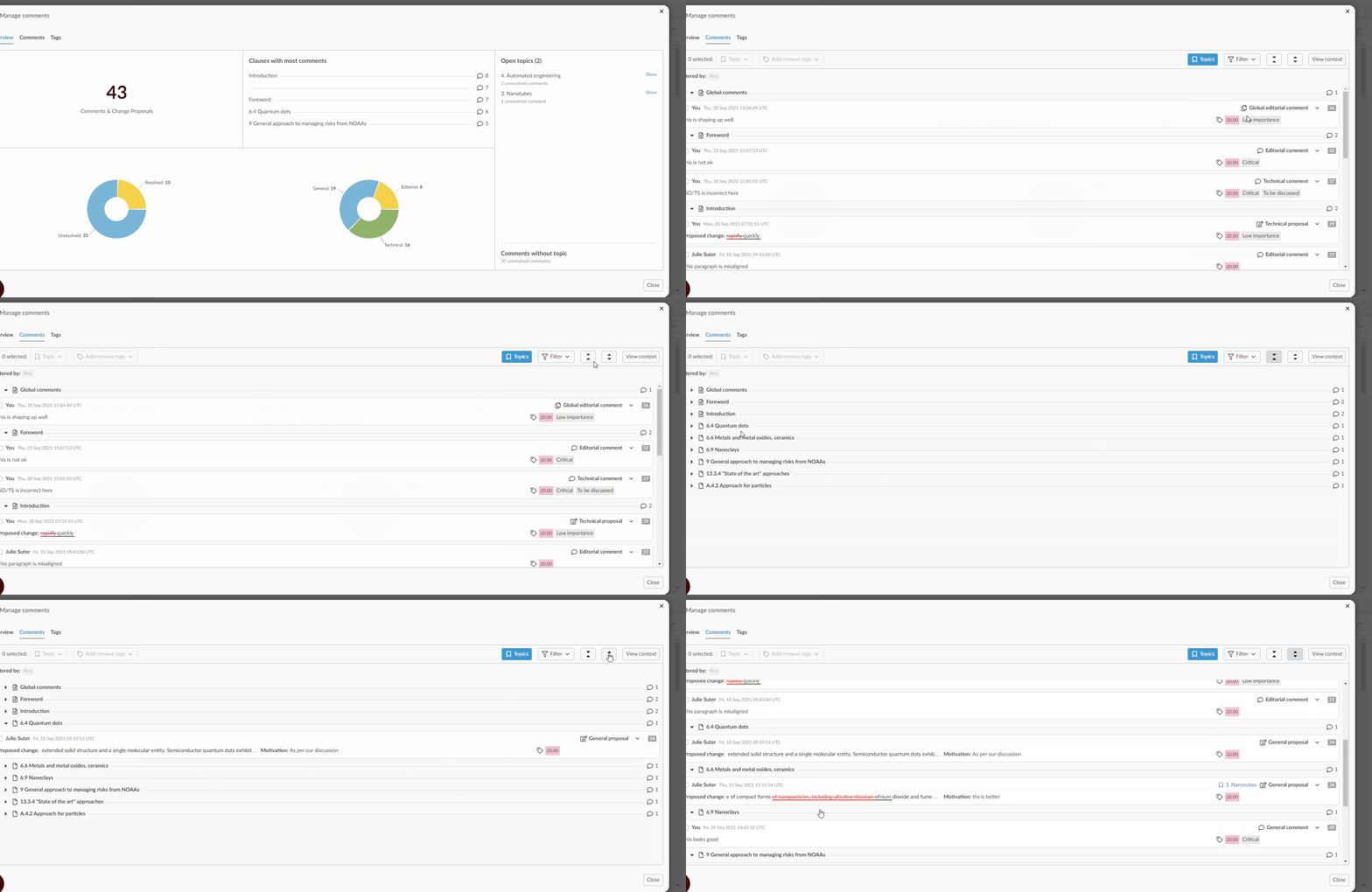
The Manage comments dashboard overview provides a summary of comments, and change proposals in the draft:
-
Total number of comments and change proposals.
-
Top 5 clauses with most comments and change proposals.
-
Breakdown of comments and change proposals by:
-
Status: resolved and unresolved
-
Type: General, Editorial, Technical.
-
-
Topics by which comments and change proposals have been classified:
-
Open Topics: Topics that have unresolved comments and change proposals under them.
-
Comments without topic: Number of comments and change proposals that have no topic assigned:
-

3 Manage comments
Leaders can perform the following actions on comments and change proposals from the Comments tab in the Manage comments window:
3.1 View all comments
-
Go to the Comments tab.
-
You can click the Collapse all icon to view the list of (sub) Clause(s) containing a comment / change proposal.
-
Clicking on Expand all will display all comments (default):
3.2 View/Hide context
-
Select a comment / change proposal and click on View context to view the exact place in the draft in which the comments or change proposal was placed.
-
Select a comment / change proposal and click on Hide context to go back to the default comment view:

3.3 Filter comments
-
Click on the Filter button.
-
Enter keywords, or select specific criteria such as comment type, tags etc. and click on Set filters.
-
Click on Clear filters will remove all filters:

3.4 Modify type of comment
-
Select a comment or change proposal.
-
From the comment type dropdown menu, select the new comment type:

3.5 Move a comment
To move a comment , go to the comment card, click on the tree dots then click on move:

Then select the new location of the comment and select place comment here:

4 Manage topics
It is possible to classify comments and/or change proposals by topics.
4.1 Access topic(s)
-
From the Overview tab of the dashboard:
-
click on the hyperlink Show next to the particular open topic
-
OR in the Comments tab of the dashboard, click on the Topics button
-
OR Select a comment or change proposal, click on the Topics dropdown menu, and select Manage topics.
-
-
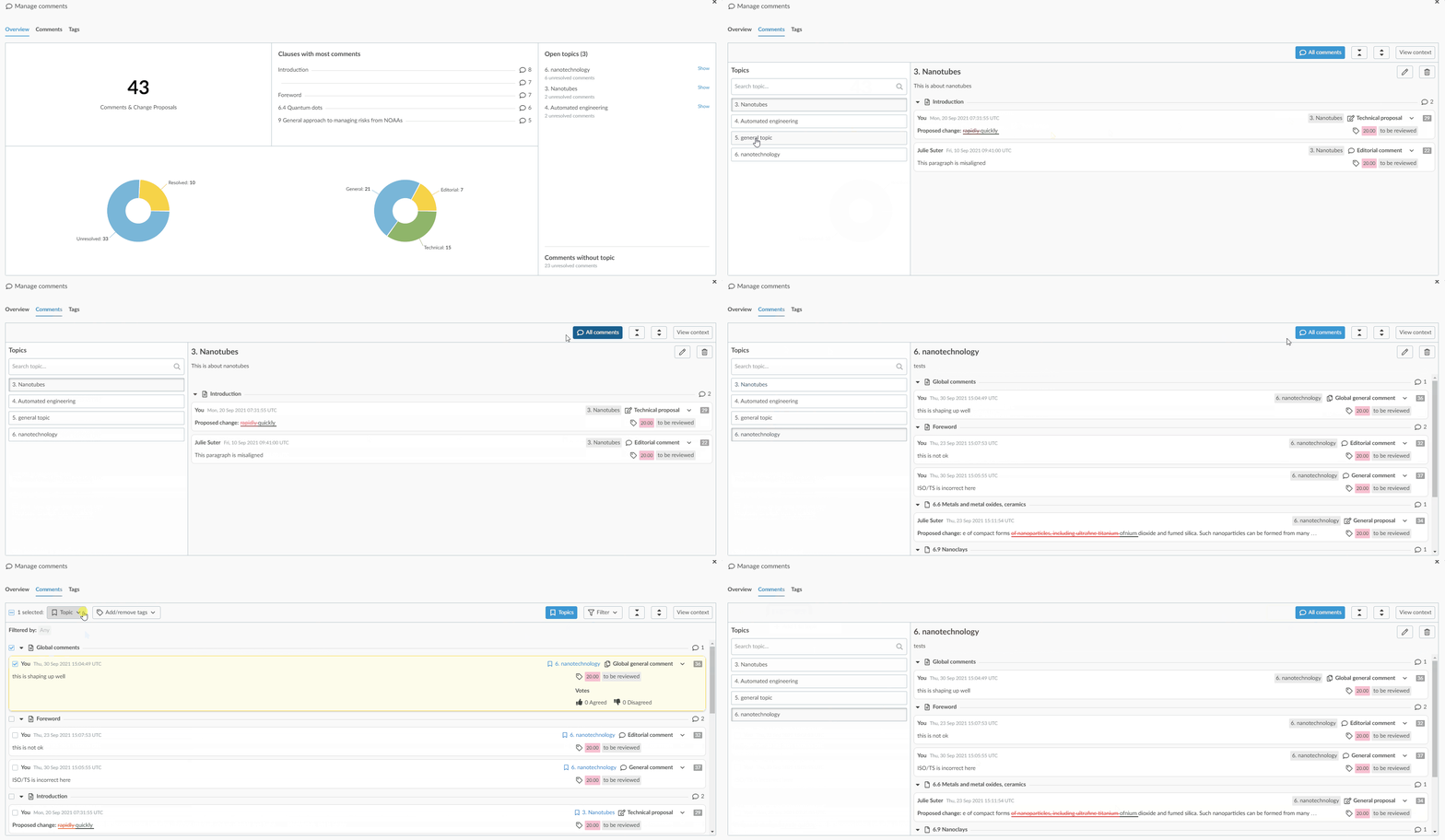
From the Topics section, click on a particular topic to view all comments under it.
-
Click on All comments button to view all comments again (without the topics classification):
4.2 Assign existing topic(s)
-
After selecting (x) number of comment(s).
-
From the Topic dropdown menu click on Add (x) to topic option.
-
Select an existing topic or create a new one (by entering its name and description).
-
Click on the Save button:
4.3 Create new topic(s)
-
Select comment (one or more or all) and from the Topic dropdown menu, click Add (x) to topic.
-
Type a Topic title and Description (optional).
-
Click on the Save button:

4.4 Remove topic(s)
-
Select one or more comment(s) and/or change proposal(s).
-
From the Topic dropdown menu click on Remove topics from (x) option:

4.5 Modify topic(s)
-
Select a particular topic.
-
Click on the Edit icon next to the topic, modify its name and description.
-
Click on the Done icon to save changes or Cancel icon to undo the changes:

4.6 Delete topic(s)
-
Select a particular topic.
-
Click on the Delete icon next to the topic.
-
If there are existing comments classified by this topic, a warning message will be displayed.
-
Click on the Delete button to continue or the Cancel button.
5 Manage tags
5.1 Access “Manage tags”
-
From the Manage comments window:
-
Either click on Tags tab
-
OR in the Comments tab, from the Add/remove tags dropdown menu, click on Manage tags option:
-

-
From the Comments bubble:
-
Select any comment or change proposal.
-
From the context menu, select Add/Remove tags.
-
From the Tags dropdown menu, select Manage tags:
-

5.2 Create tags
-
Type a name for the tag in the Create tag text box.
-
Click on Add:

5.3 Modify tags
-
Click on Edit icon next to the tag.
-
Modify the tag.
-
Click on the Done icon.
-
If the tag is already used on existing comments, a warning message is displayed indicating the number of comments and change proposals using the particular tag and that modifying the tag will also update the tag for those comments:
-
Click on the Change button to confirm the modification
-
Click on the Cancel button to not continue with the modification:
-

5.4 Delete tags
-
Click on Delete icon next to the tag.
-
A warning message is displayed indicating the number of comments and change proposals using the particular tag.
-
Click on the Remove button to confirm the deletion.
-
Click on the Cancel button to not delete the tag:

5.5 Assign tag(s) to comments and change proposals
-
Select one or more comment(s) and/or change proposal(s).
-
From the Add/Remove tags dropdown menu, select existing tag(s) and click on the Set tags button:

5.6 Remove assigned tag(s)
-
Select one or more or all comment(s) and/or change proposal(s).
-
From the Add/Remove tags dropdown menu, uncheck selected tag(s) and click on Set tags button:

6 Uploading comments
In some cases, e.g. for liaison comments and comments received from a NC for late upload, leaders need to upload comments to OSD using the comment template form.
Comments can be uploaded/added using the Load comments option: