
1 Adding a terminological entry
A terminological entry can be added only to the clause 3 Terms and definitions. It can be added from the INSERT menu, while the cursor is placed anywhere in the document. It is automatically added to clause 3 Terms and definitions.
To add a terminological entry, use one of these options:
-
Under the clause 3 Terms and definitions or under a sub-clause in this section:
-
From the clause 3 Terms and definitions, or from a sub-clause in this section, click on the button: + TERM ENTRY AT SAME LEVEL
OR
-
From the contextual menu of the clause 3 Terms and definitions or the contextual menu of a sub-clause in this section, in the OUTLINE, select the option: "Create term entry at same level" after right clicking
-
-
In the same level as a previous terminological entry:
-
From a Terminological entry, click on the button: + TERM ENTRY AT SAME LEVEL
OR
-
From the contextual menu of a terminological entry in the OUTLINE, select the option: "Create term entry at same level" after right clicking
-
-
On a sub-term level (level 3)
-
From a Terminological entry, click on the button: + SUB-TERM ENTRY
OR
-
From the Terminological entry menu (level 2) in the OUTLINE, select "Create sub-term entry"
-
-
From the INSERT menu, select "Term entry". The terminological entry will be added automatically in the clause 3 Terms and definitions.
Demonstration of various options included in the list above

Differences in contextual menu on Terms in Outline (based on level)

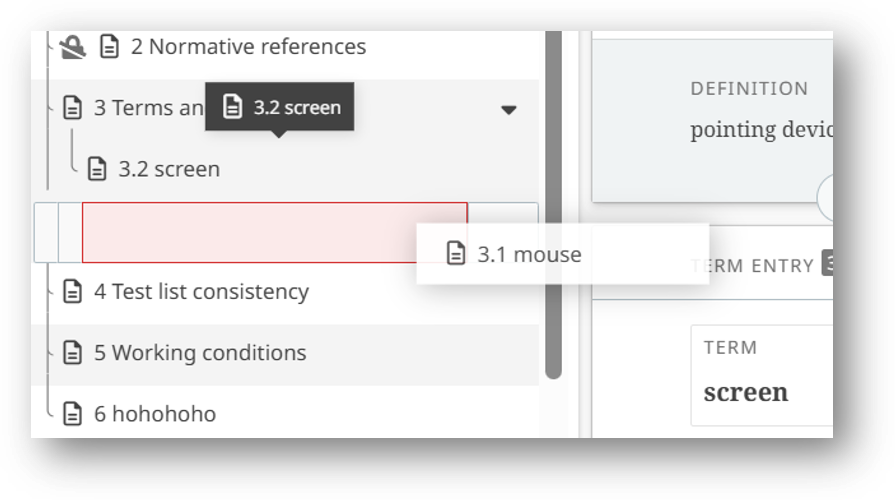
Terms can be moved by the dragging and dropping to a new position
2 Creating a quick term entry from within the text
-
To create a term from within the text:
-
select any word in your document
-
access the INSERT menu
-
select Term entry.
-
-
This will automatically add the term to the Terms and definitions section clause and will automatically create a cross reference to the new term entry.

3 Creating a cross reference to a term entry
-
To create a cross reference to an existing term in the Terms and definitions clause:
-
select the word or sentence
-
access the INSERT menu
-
click on Term entry
-
select Link to existing term entry from the list:
-

4 Modifying term classifications
-
By default, the first term added in a terminological entry is classified as:
-
Part of speech: Noun
-
Grammatical number: Not set
-
Normative authorization: Preferred
-
Term type: Full form
-
-
Additional terms added in a terminological entry are classified, by default, as in the list above.
-
In order to modify the classification of a term, and add other classification details, click on the pencil icon next to the term:

5 Adding extra term, note, example, source
-
An additional term can be added from the contextual menu of a terminological entry by selecting the option: Add term entry.
-
It can be added from the TERMS tab (which appears only when the cursor is placed in a terminological entry), by clicking on Extra term.
-
Similarly, one can add additional information to a term, like Notes, Examples, and the term Source.

Please Note
-
The following rules have been pre-built into the tool to facilitate authoring of terms and definitions:
-
There can be only one definition per terminological entry. This definition is required and cannot be removed.
-
There can be only one source per terminological entry.
-
There is no limit to the number of additional terms, notes and examples per terminological entry.
-
Definitions, examples and sources will not be numbered or ordered (order of creation is kept).
-
6 Term containing graphics
To insert a graphic in a term entry:
-
From INSERT
-
Select Graphics
-
Then Image from the options menu:

Select the figure you want from the pop-up menu or upload a new image, then click on Insert:
