Accessible only to administrators to manage OSD national/regional settings.
What is permission assignment?
Permission assignment is where you link roles to presets for each stage of your workflows. A stage corresponds to a step in the development process (for example, a drafting stage or a voting stage). For each stage, you define which roles exist and what permissions each role has.
To access Permission assignment, go to: Admin > Permission settings > Permission assignment
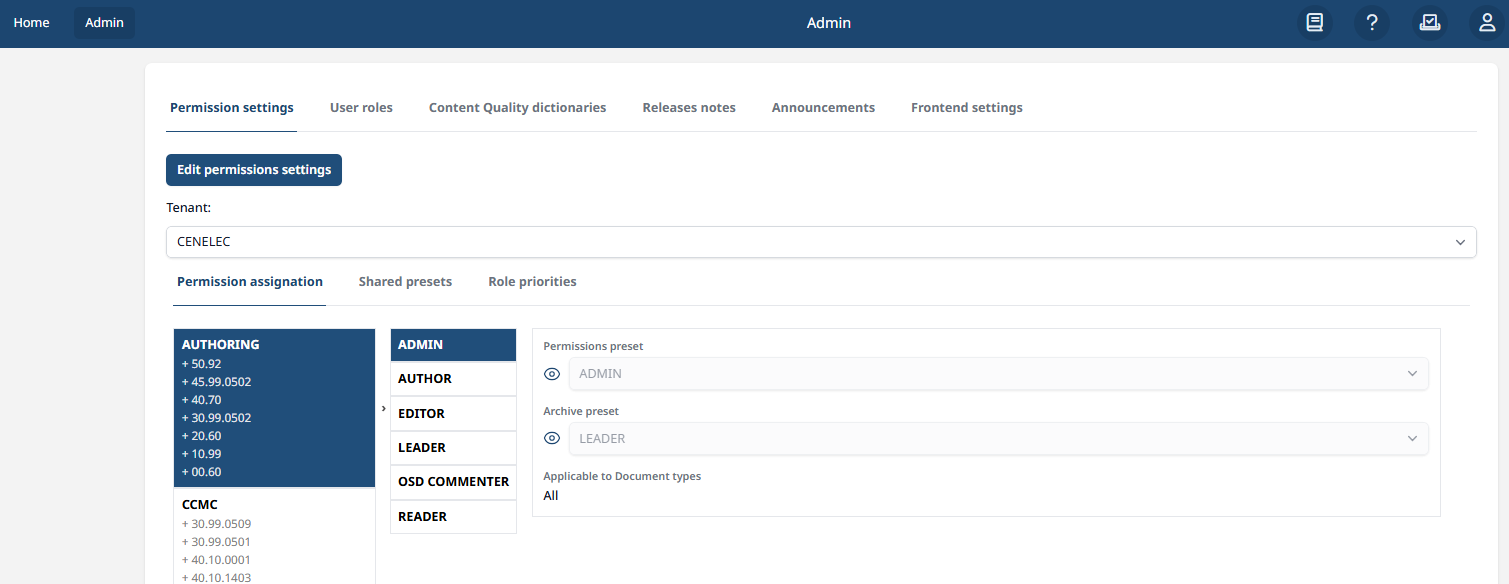
The left panel lists all existing stages, grouped by category. Click on a stage to see its details on the right.
Each stage has the following configuration:
-
Role — the role that this permission entry applies to (e.g. LEADER, AUTHOR, READER)
-
Permissions preset — the preset that determines what this role can do while this stage is active
-
Archive preset — the preset applied to this role when the stage is archived (typically a read-only preset)
-
Applicable to Document types — optionally restrict this role/preset combination to specific document types. Defaults to All.
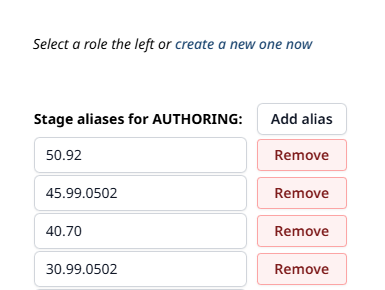
A stage alias is an alternative name for an existing stage. Aliases can be used when there are multiple stages that share the same roles and permissions (for example: authoring stages). There’s no need to duplicate the stages, we can create one and use aliases. The changes in roles and presets applied to the main stage will also apply to its aliases.
How to create a new stage
-
Click Edit permissions settings to enter edit mode.
-
Click “create a new one now” in the right panel.
-
Enter a stage name and click Confirm.
-
Immediately after creation, you must assign at least one role. Select a role from the list or create a new one.
-
Set the Permissions preset and Archive preset for that role.
-
Repeat for additional roles as needed.
-
Click Save when done, or Cancel to discard your changes.
How to update a stage
-
Click Edit permissions settings to enter edit mode.
-
Click on the stage you want to update.
-
Make your changes in the right panel.
-
Click Save when done, or Cancel to discard your changes.
How to create an alias
-
Click Edit permissions settings to enter edit mode.
-
Click on the stage you want the alias for.
-
Click on “Add alias”.
-
Enter a name for the alias.
-
Click Save when done, or Cancel to discard your changes.
How to delete a stage or stage alias
-
Click Edit permissions settings to enter edit mode.
-
Click on the stage you want to delete.
-
Click Remove stage [name] at the bottom of the right panel.
-
To remove a stage alias instead, click Remove next to the alias name in the right panel.
-
Click Save to confirm, or Cancel to discard.