
Accessible only to administrators to manage OSD national/regional settings.
What are role priorities?
Some users have more than one role in OSD. For example, a person might be both an ADMIN and a LEADER. When such a user opens a project for the first time, OSD needs to know which role to assign them by default. The Role priorities list controls this: the role with the lowest number (highest priority) is selected automatically.
The user can always change their active role manually once inside a project. Role priorities only affect the default selection on first access and after a stage transition.
To access Role priorities, go to: Admin > Permission settings > Role priorities
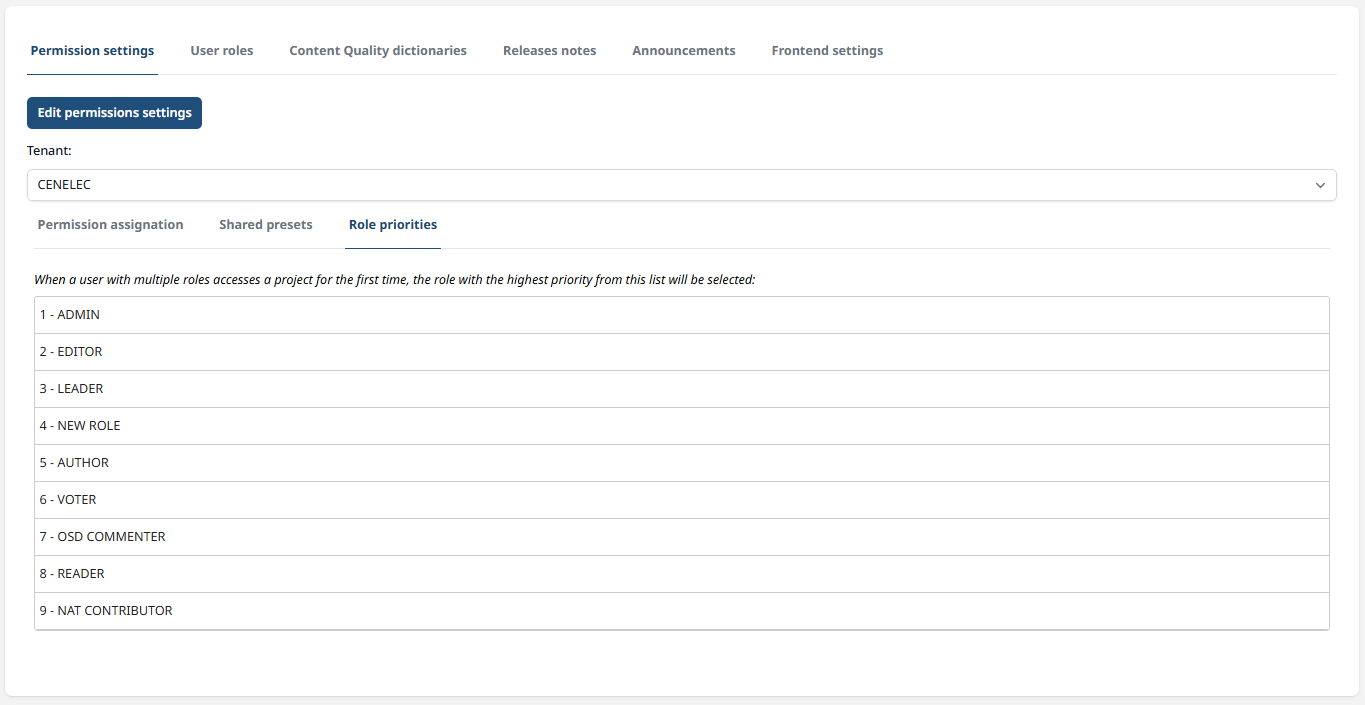
In the example above, a user who has both the ADMIN and LEADER roles would enter any project as ADMIN by default, since ADMIN has the highest priority (position 1).
How to change the role priority order
-
Click Edit permissions settings to enter edit mode.
-
Drag and drop the roles into the desired order. The role at the top has the highest priority.
-
Click Save when done, or Cancel to discard your changes.
The roles displayed in the Role priorities list are drawn from the Permission Assignation tab. If a role does not appear in the list, check that it has been created.