
What is this about?
This section describes the functionalities available to National Committee (NC) Administrators to manage users and related information in the Expert Management System (EMS).
NC Administrators maintain user data for their National Committee and ensure that experts have the appropriate roles, permissions, and organizational information.
EMS provides NC Administrators options to manage:
-
users and expert types
-
committee roles
-
permissions and voting rights
-
organizations and companies
-
NC user statistics.
These actions support effective participation of experts in IEC committees and activities.
1 Overview of NC User Management
EMS provides a dedicated User Management area where NC Administrators can manage users belonging to their National Committee.
From this interface, administrators can:
-
create and update users
-
assign committee roles
-
manage document and voting permissions
-
access user activity information
-
maintain organization and company records.
All administrative actions apply only to users belonging to the administrator’s National Committee.
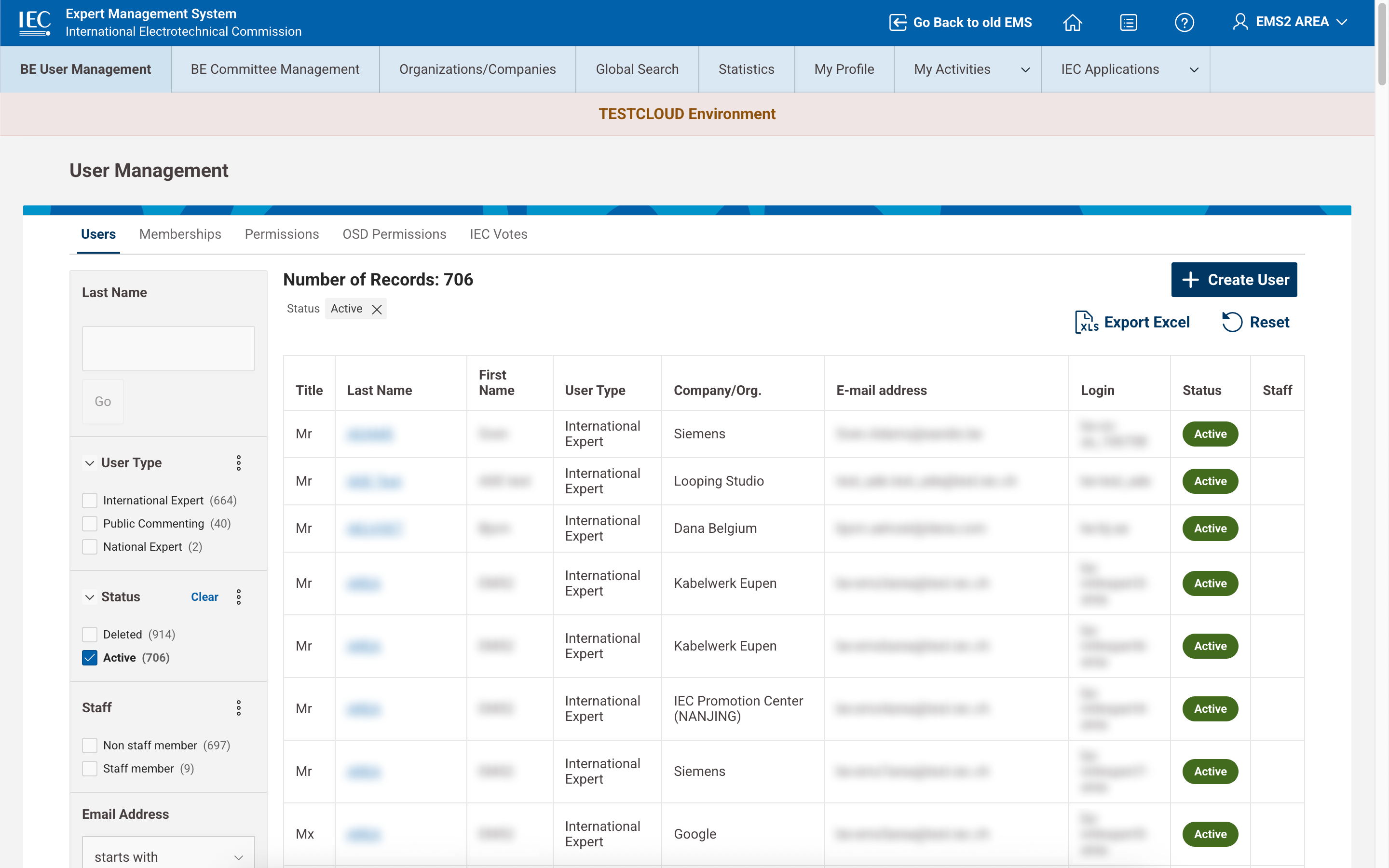
NC Administrator Overview
2 Accessing NC User Management
After logging in to EMS, NC Administrators can access user management:
-
from the NC User Management card on the landing page
-
or User Management via the top navigation menu.
The page displays a list of users belonging to the National Committee.
From this interface you can:
-
search users
-
filter results
-
open user profiles
-
create new users:
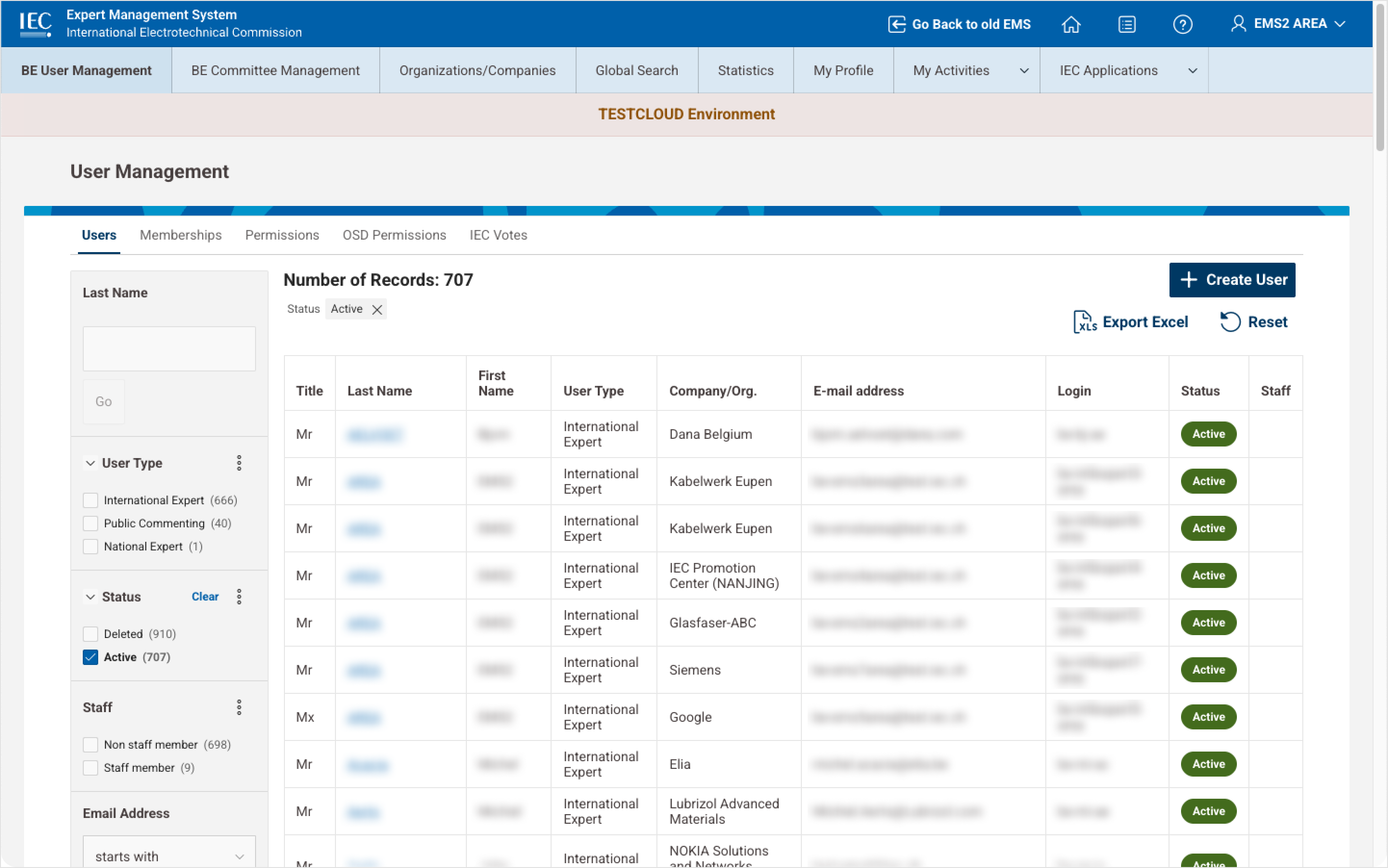
3 Creating a new user
NC Administrators can create new experts representing their National Committee.
Steps:
-
Navigate to NC User Management
-
Click Create User
-
Enter the user’s last name
-
Verify that the user does not already exist
-
Fill in the required profile information
-
Click Create & Preview Profile.
Required fields include:
-
Title
-
Email address
-
Organization / Company.
If the information is valid, the system confirms the creation of the user profile.
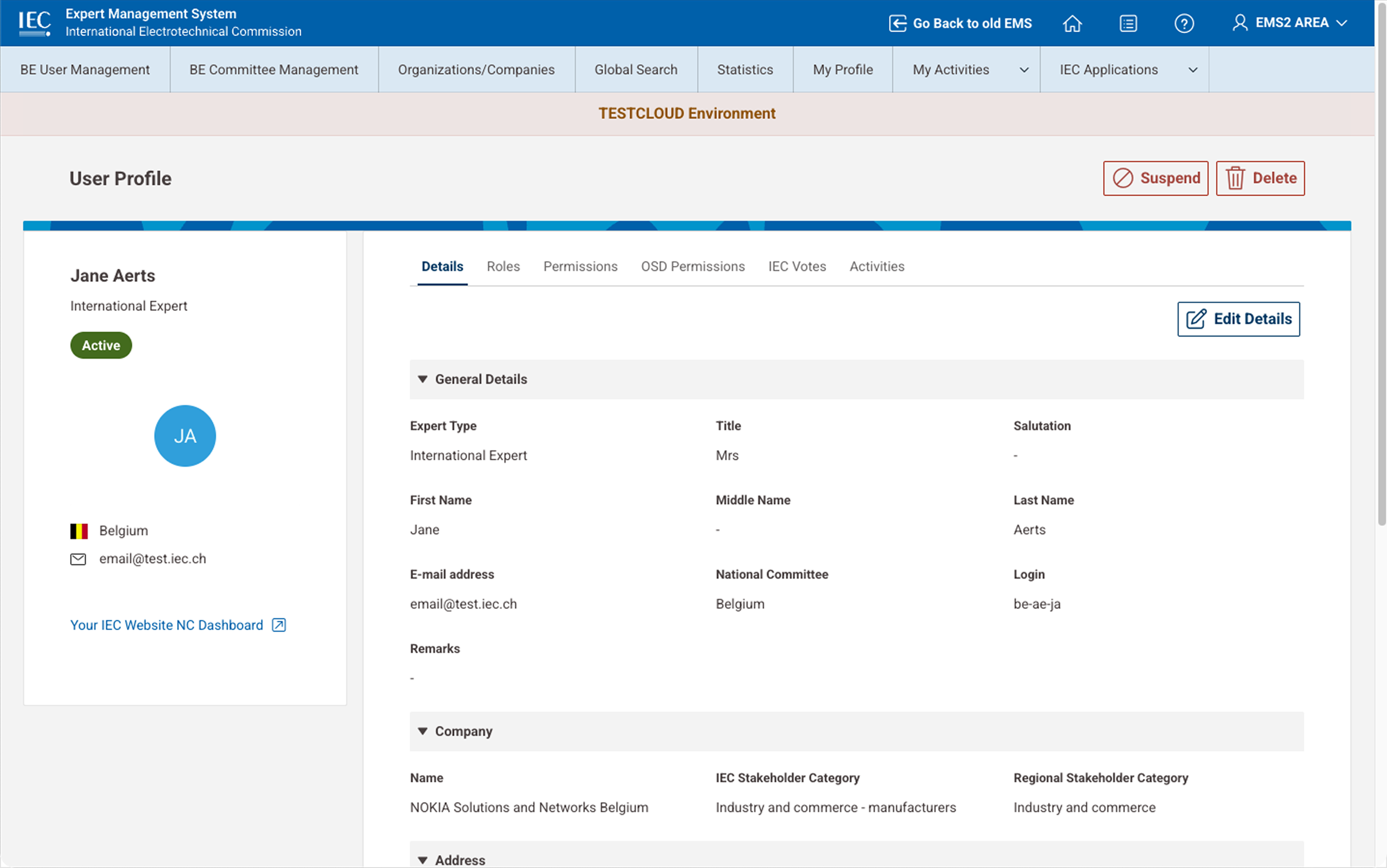
4 Updating user information
NC Administrators can modify user profile information when required.
Editable information may include:
-
contact details
-
organization / company
-
expert type
-
additional profile information.
Steps:
-
Search for the user
-
Open the User Profile
-
Click Edit Details
-
Modify the necessary fields
-
Save the changes.
Mandatory fields are validated before saving.
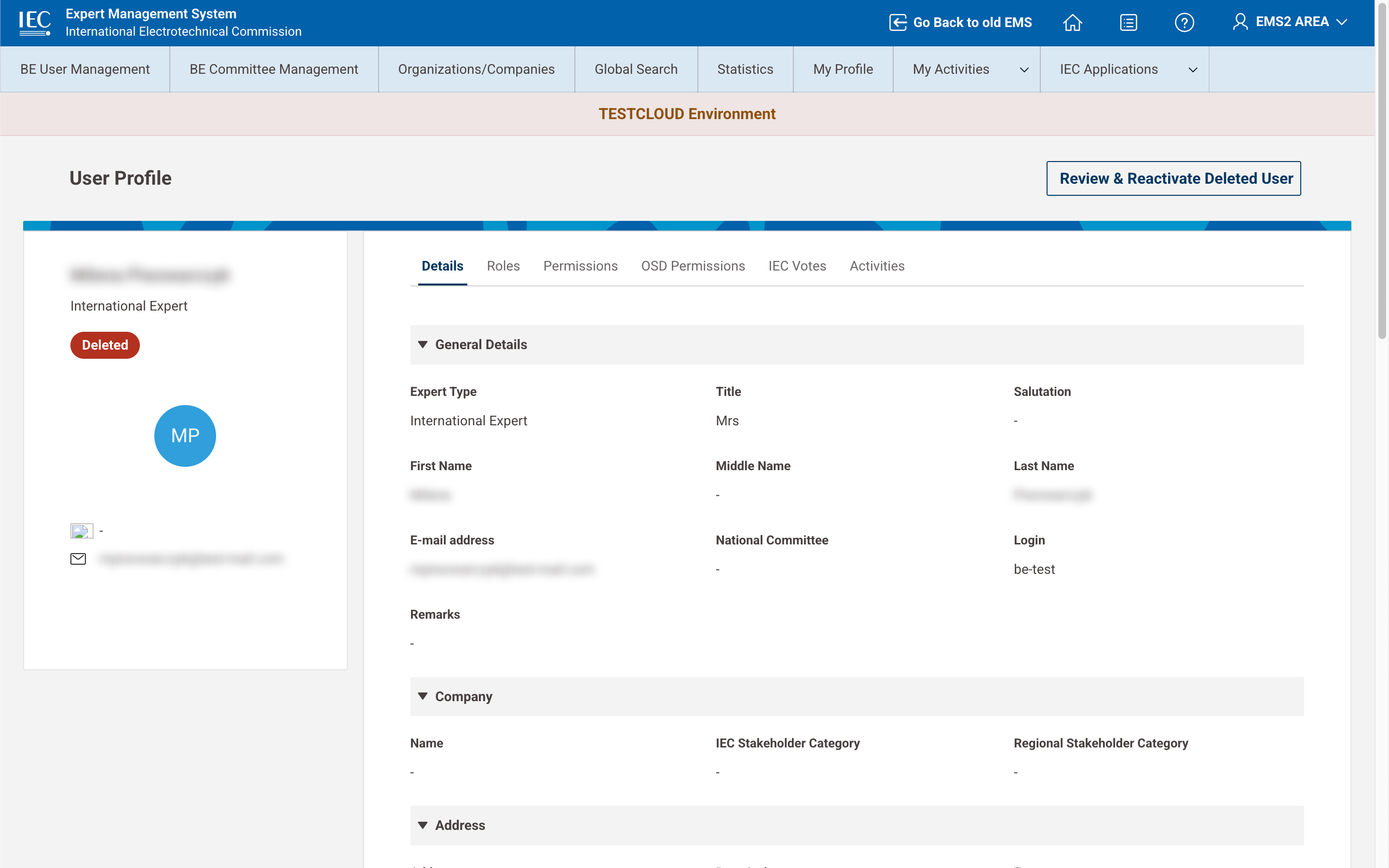
5 Managing user lifecycle
NC Administrators can control the status of users belonging to their National Committee.
Available actions:
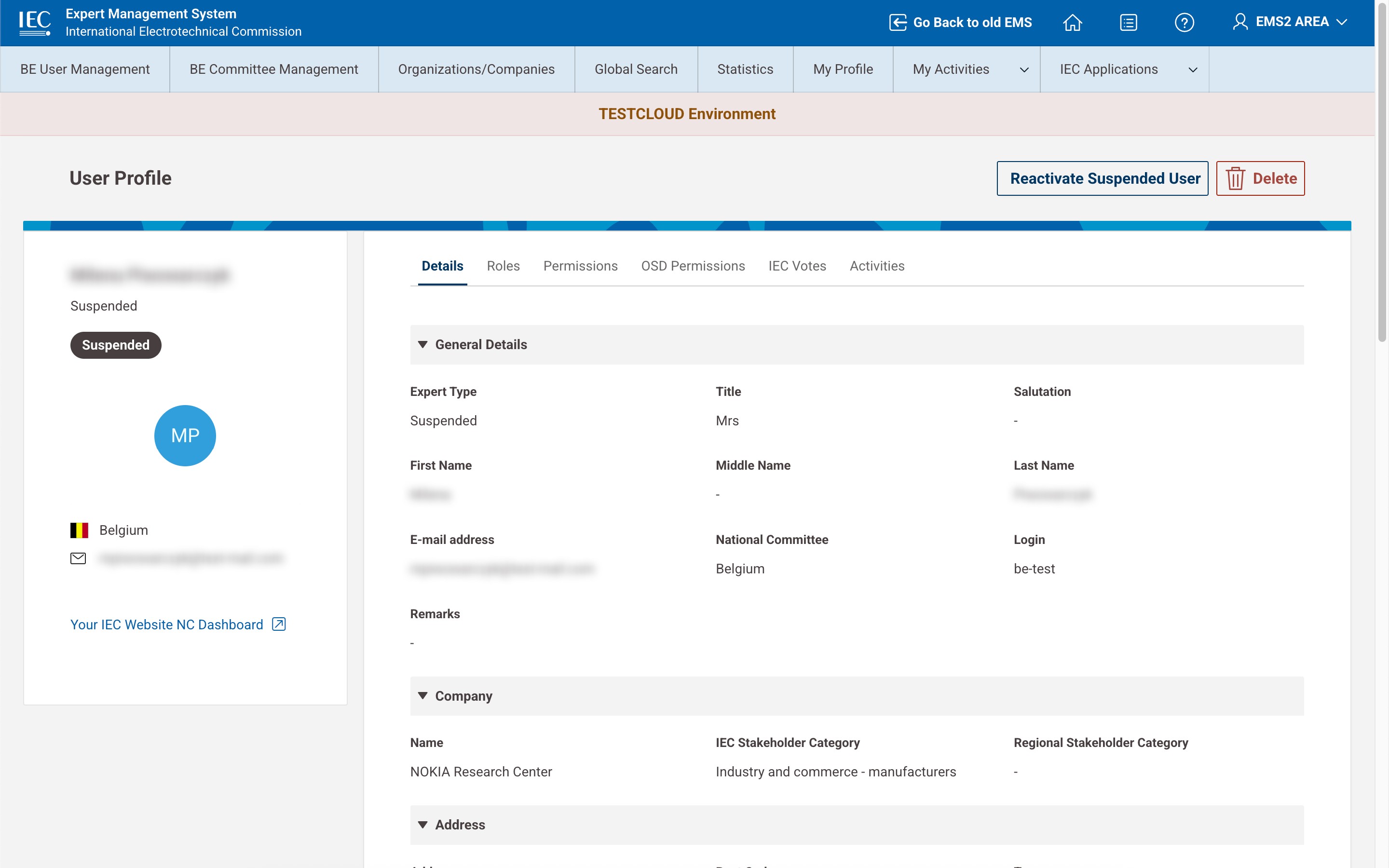
Suspend user
Suspended users remain in the system but cannot access EMS.
Delete user
Deleted users are removed from active participation.
Steps:
-
Open the user profile
-
Click Suspend or Delete
-
Confirm the action.
After confirmation, the user status is updated.
6 Managing committee roles
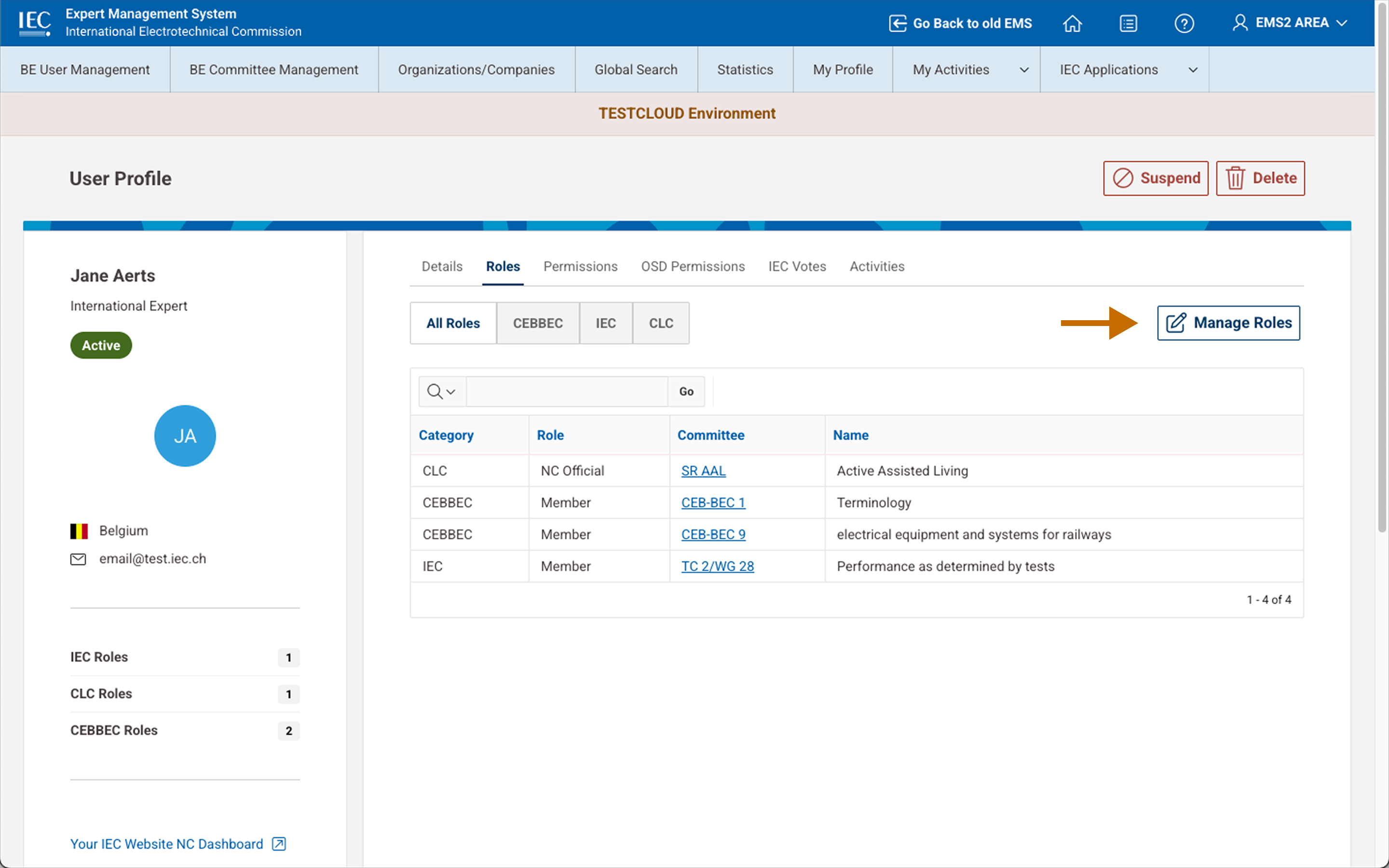
NC Administrators can assign or remove roles for users in IEC committees or working groups.
Steps:
-
Open the user profile
-
Navigate to the Roles tab
-
Click Manage Roles
-
Assign or remove roles
-
Save changes.
If a role needs to be changed, the existing role must first be removed and replaced with the new one.
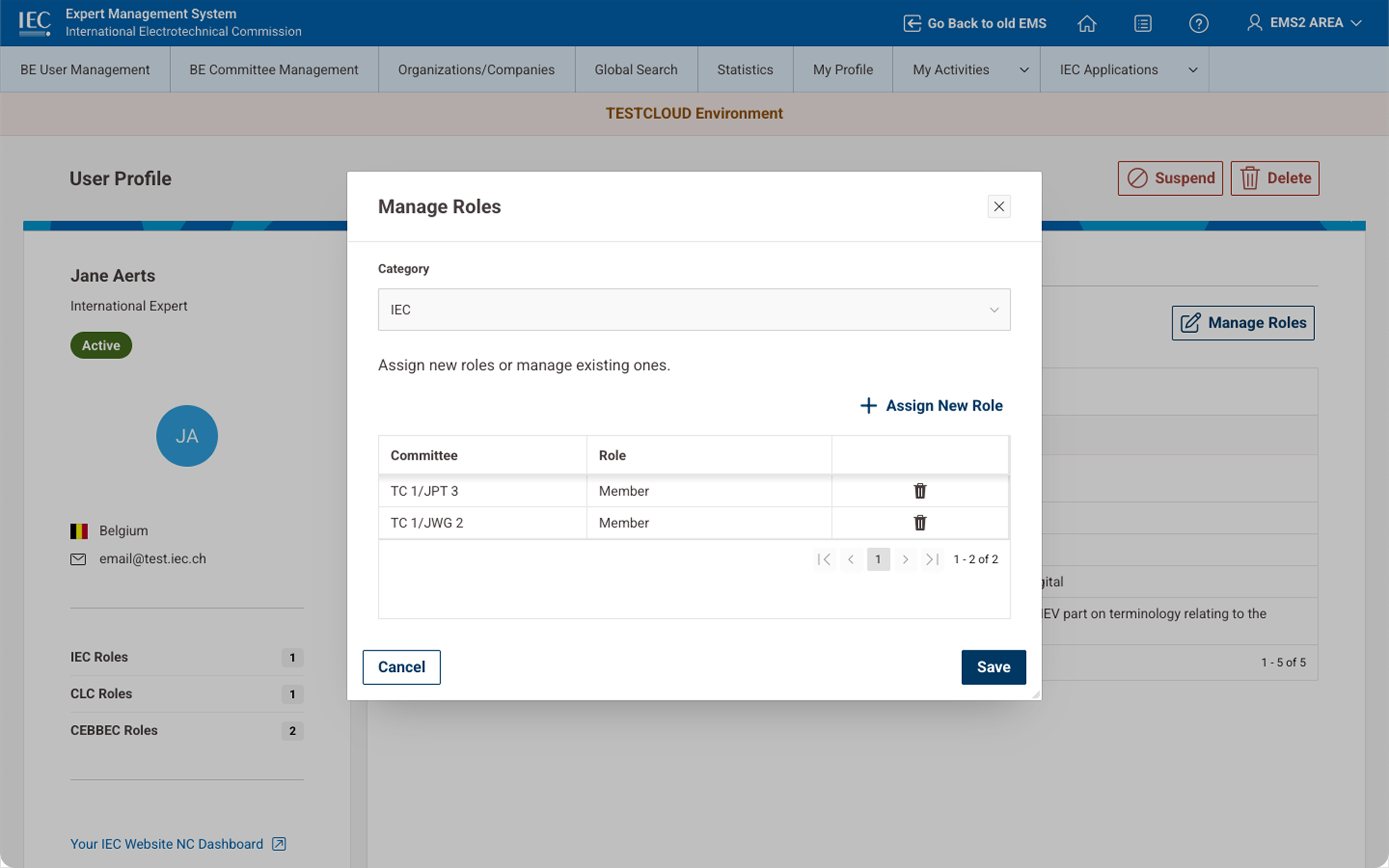
Manage Roles second interface
7 Managing permissions and voting rights
NC Administrators can manage permissions related to:
-
access to committee documents
-
voting rights on technical committees.
Steps:
-
Open the user profile
-
Navigate to the Permissions tab
-
Click Manage Permissions
-
Select or remove privileges
-
Save changes.
Voting permissions are managed from the IEC Votes tab.
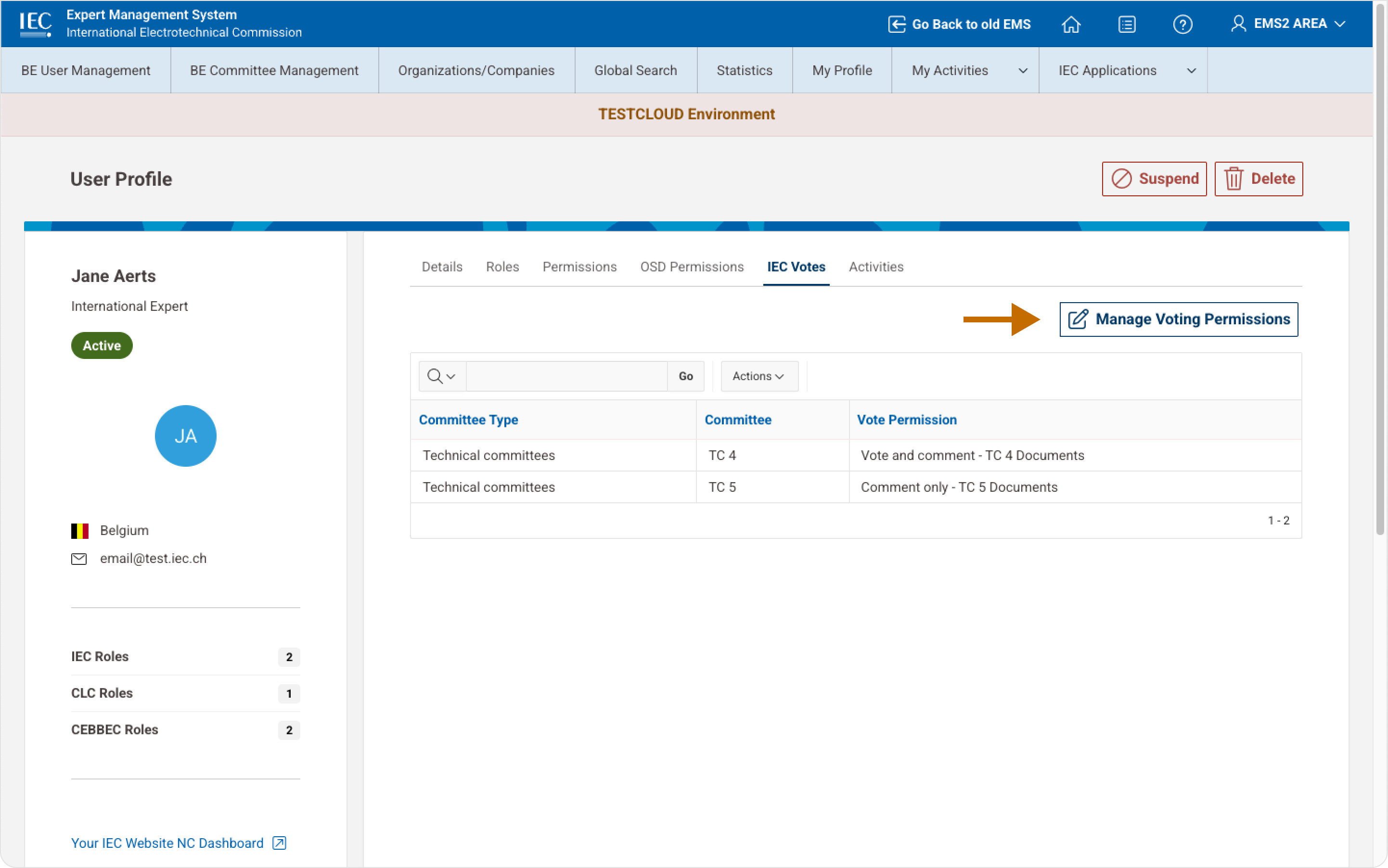
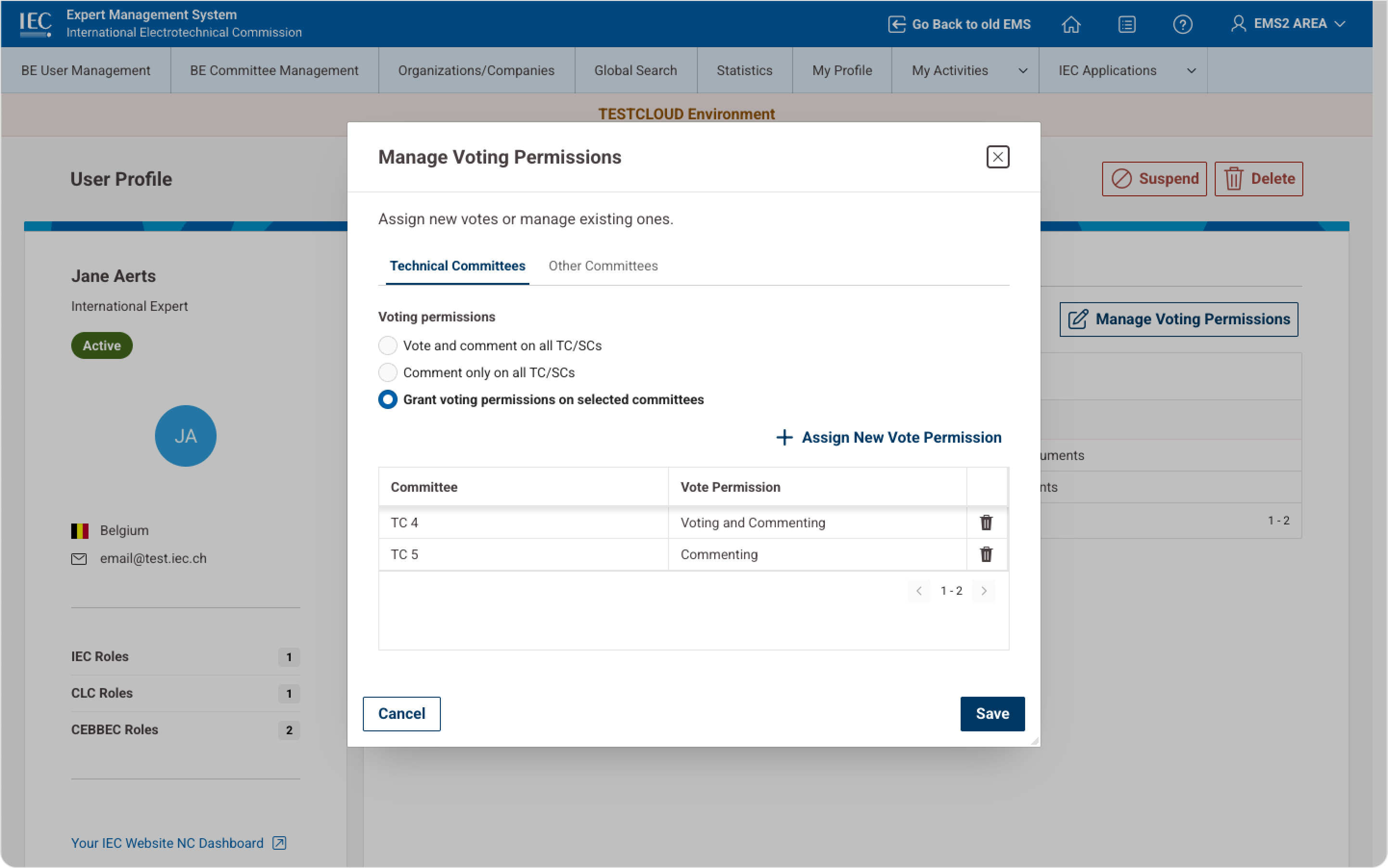
Manage Voting Permissions Second Panel
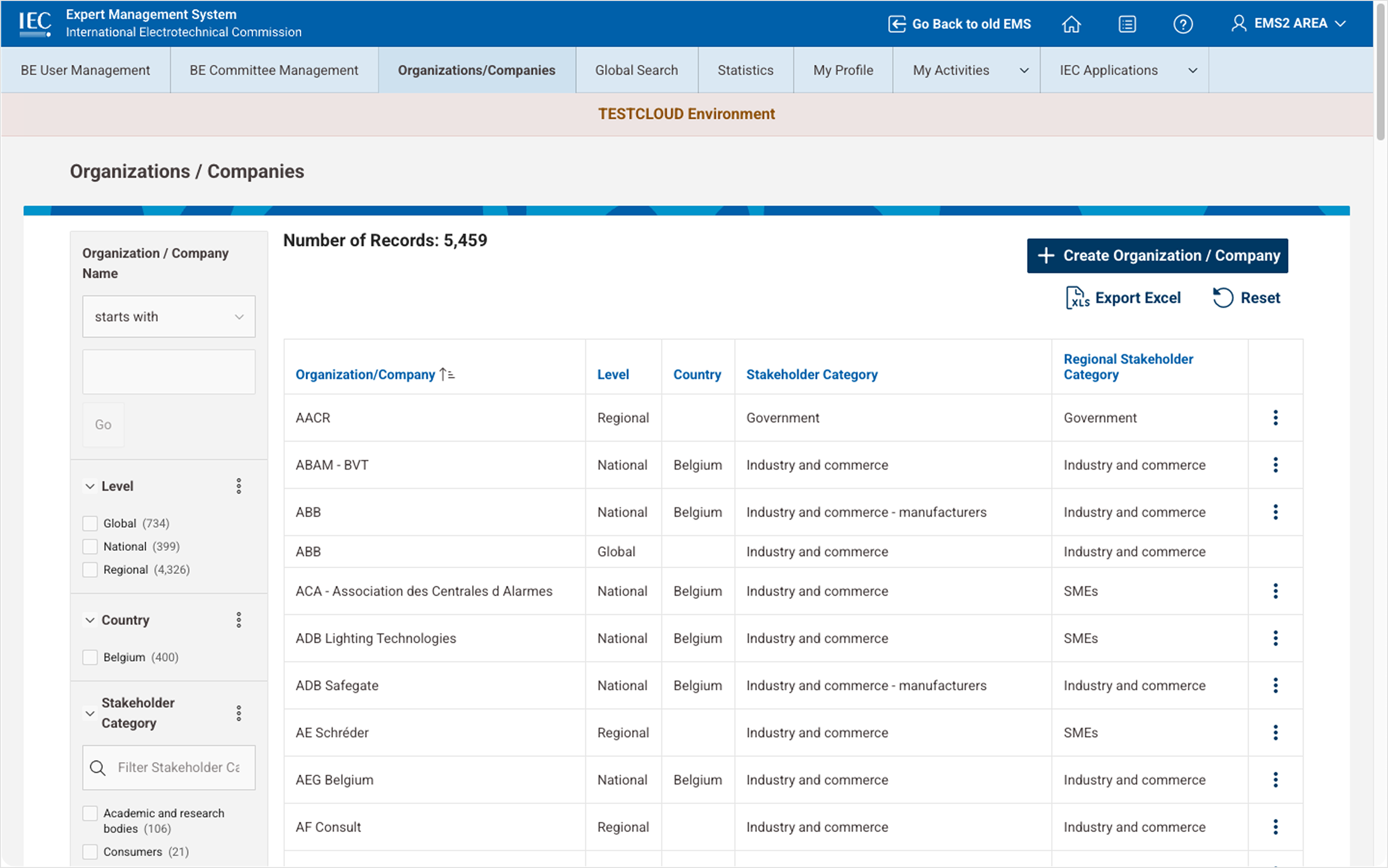
8 Managing organizations and companies
NC Administrators can manage organizations associated with their National Committee.
Available actions:
-
create organizations or companies
-
edit organization details
-
delete organizations.
Steps:
-
Navigate to Organizations / Companies
-
Click Create Organization / Company
-
Enter the required information
-
Save the record.
Organizations created here can be assigned to users during profile creation or updates.
9 Accessing NC statistics
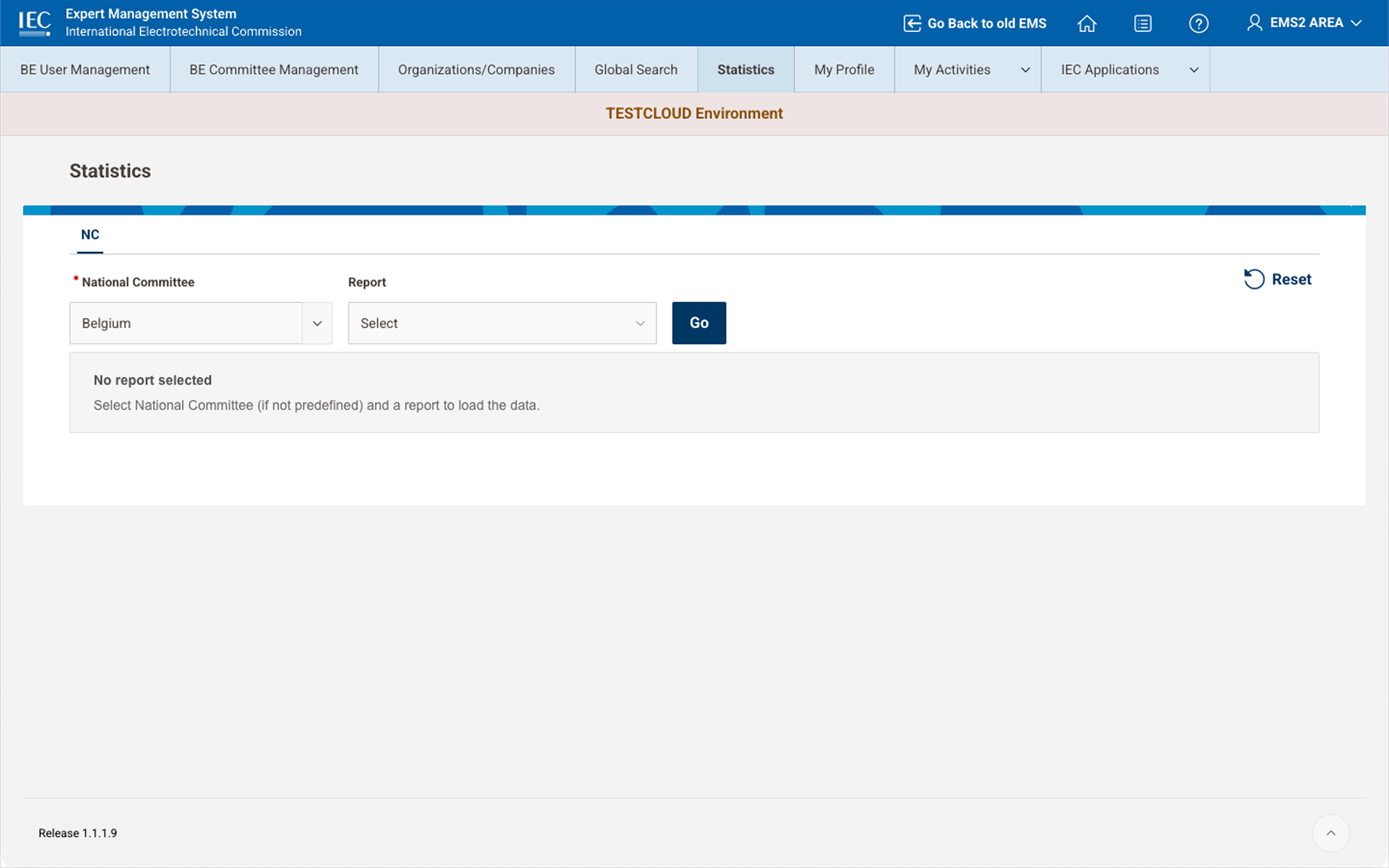
EMS provides reporting capabilities that allow NC Administrators to track participation and activity.
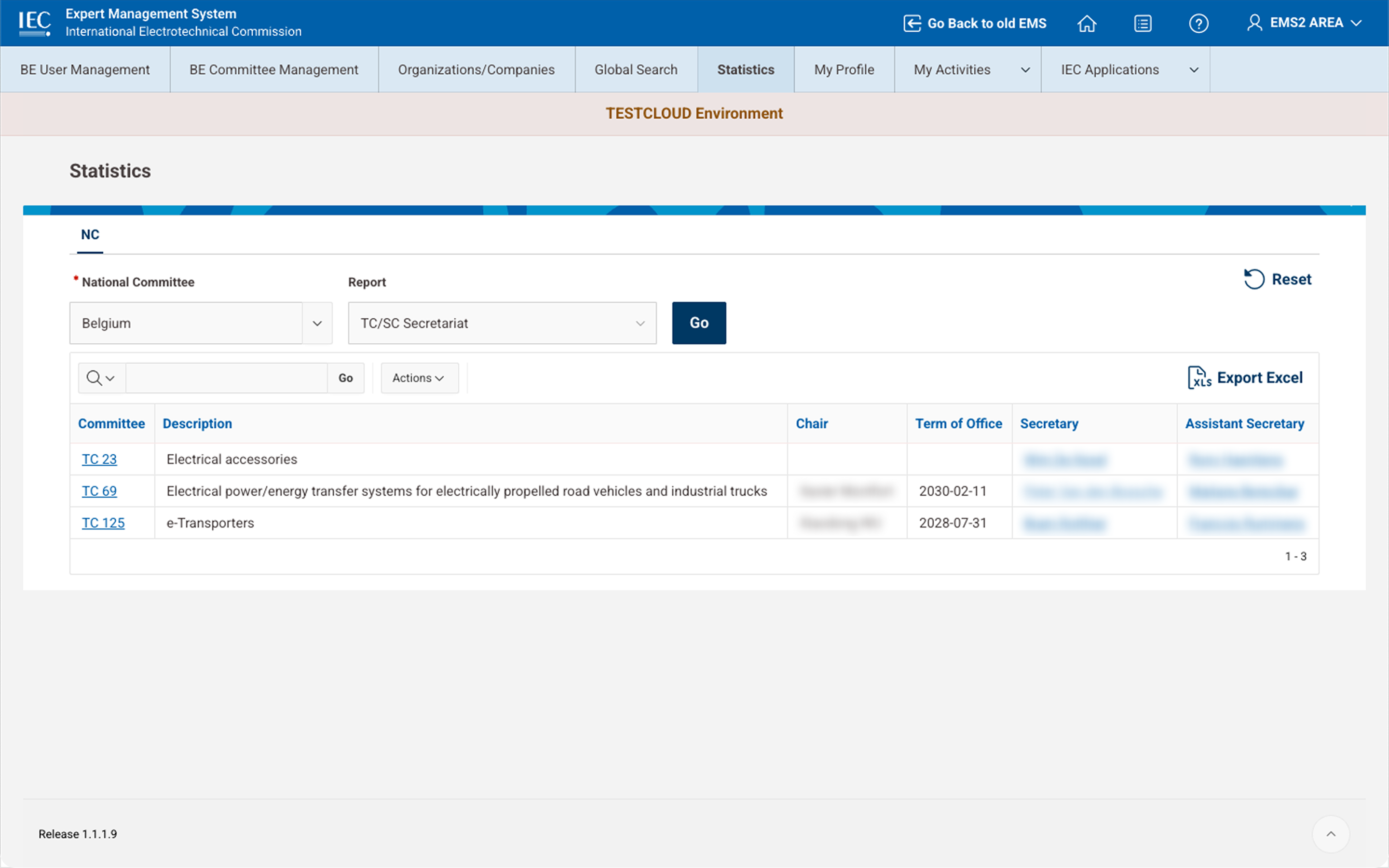
Examples of available reports:
-
TC/SC Secretariat report
-
TC/SC Chair term report
-
full export of NC users.
Steps:
-
Navigate to Statistics
-
Select a report
-
Click Go or Download.
Reports can be exported in Excel format.
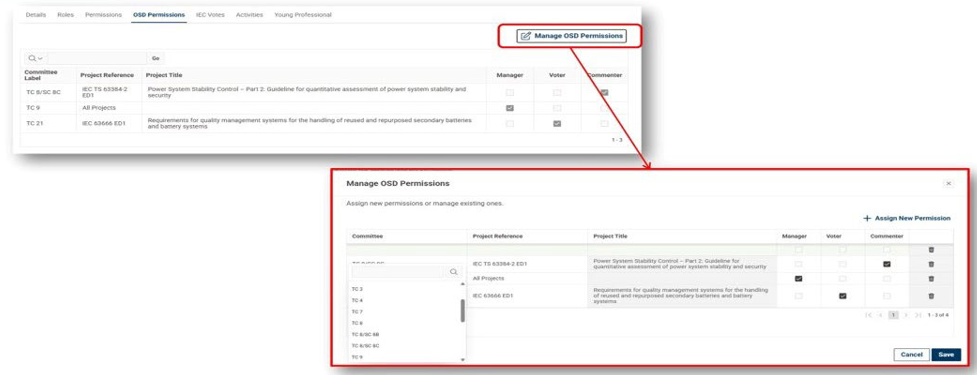
10 Managing OSD permissions
NC Administrators can manage permissions related to:
-
access to national (mirror) committee documents (commenting stages of international work)
-
commenting and comment related permissions for international technical committee work at the national level.
Steps:
-
Open the user profile
-
Navigate to the OSD Permissions tab
-
Click Manage OSD Permissions
-
Select or remove privileges
-
Save changes.
Please note import options also exist for OSD permissions.