
This section describes the functionalities available to users to manage their own profile and access in the Expert Management System (EMS).
EMS allows users to independently maintain their personal information and access settings, without requiring administrative intervention for routine updates.
What all users can do
-
View and update your personal profile information
-
Manage your login and authentication settings
-
Access EMS according to your assigned roles
-
Keep your information up to date in a secure environment
What is not covered here
The following topics are not part of this section and are addressed separately:
-
Managing other users
-
Administrative role configuration
-
Advanced management or reporting features
1 Overview of User Self-Management
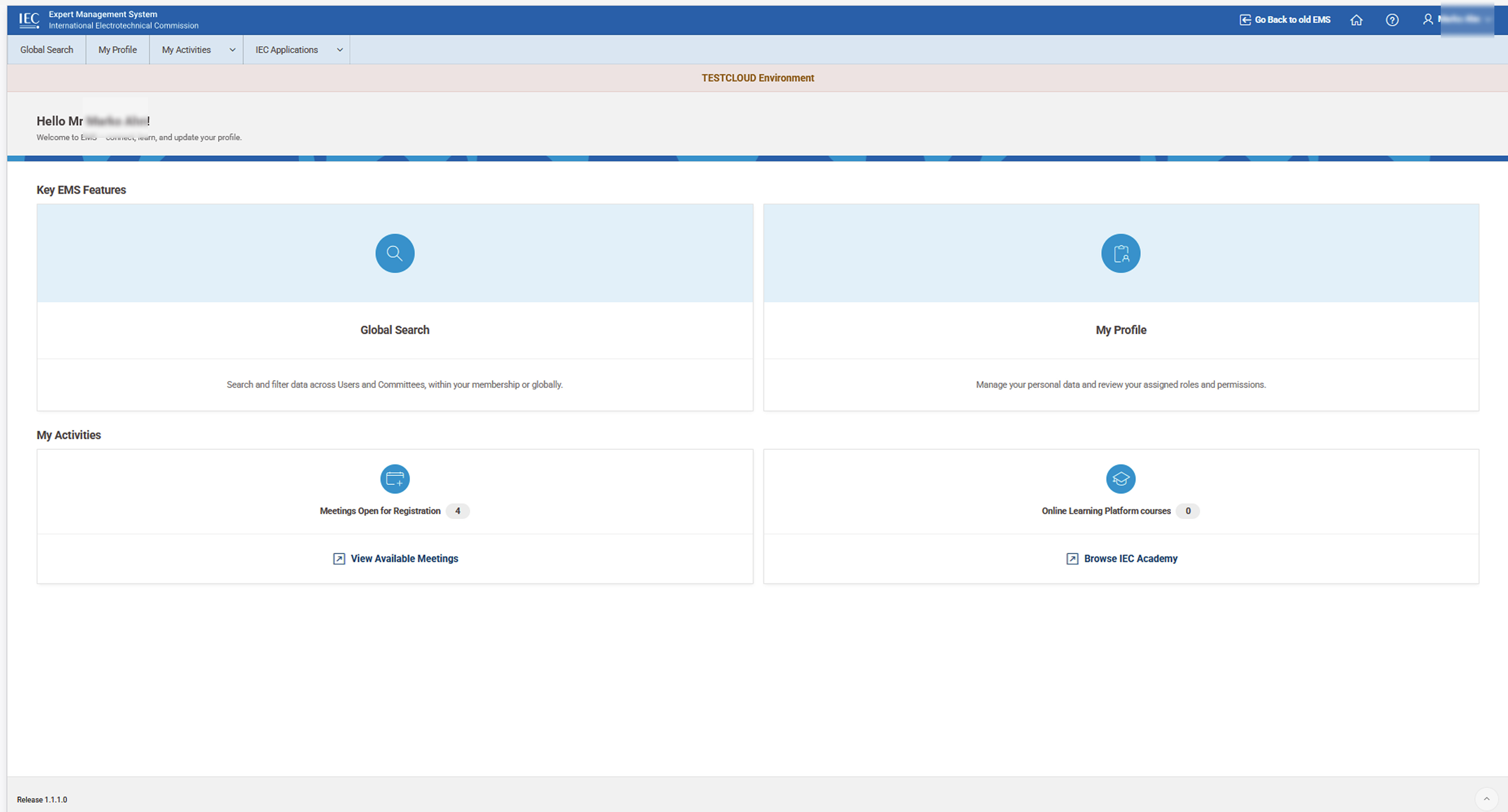
EMS provides a central place where users can:
-
manage their personal profile
-
control their access and authentication settings
-
view their roles, permissions, meetings, and training
-
access information about committees and participants
These actions are available according to your assigned roles and access rights.
📸 EMS Landing Page – Key EMS features & My Activities
🎥 User Self-Management overview
2 Accessing your EMS profile
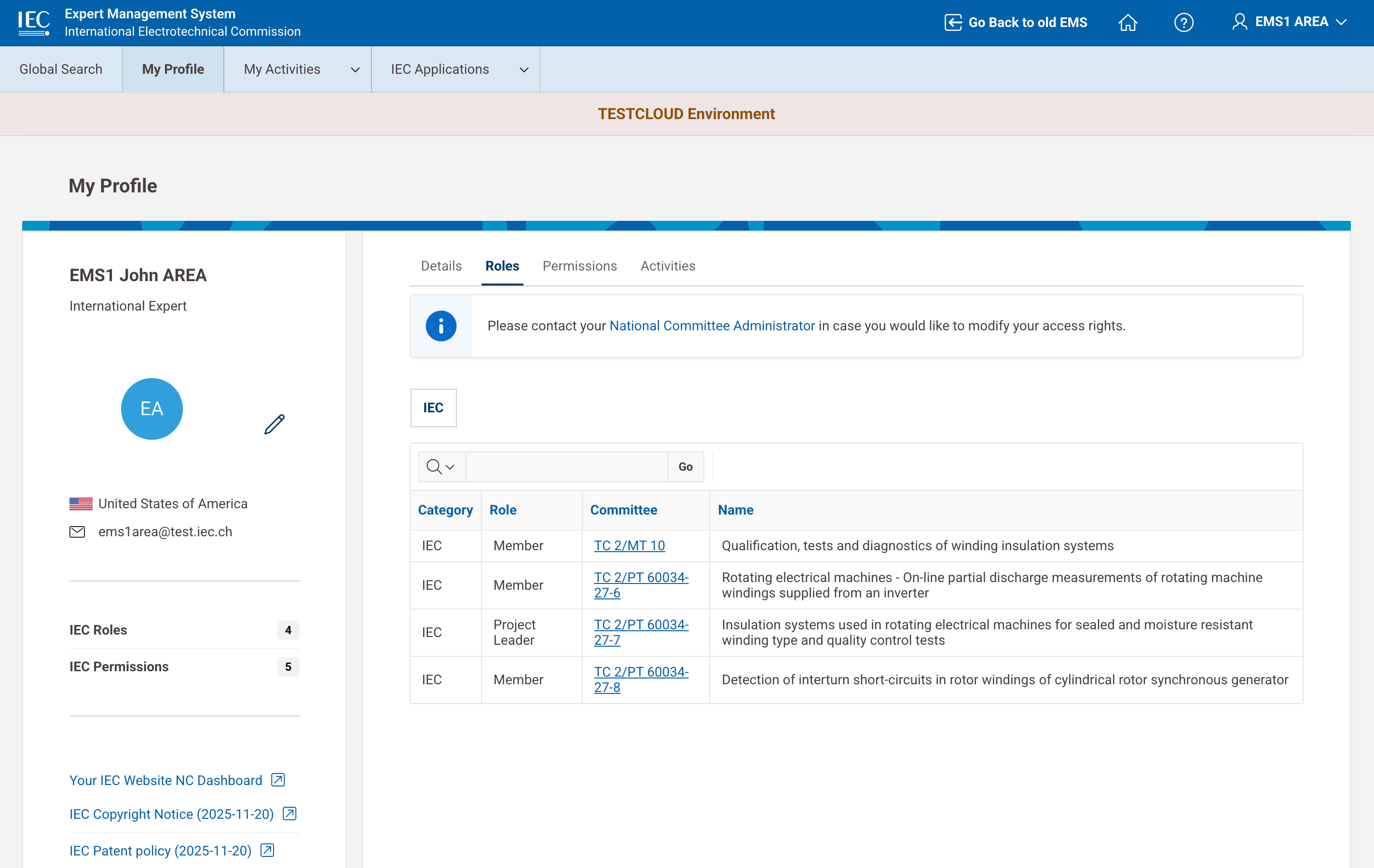
After logging in, you can access your profile:
-
from the “My Profile” card on the landing page
OR
-
via the top navigation menu
The profile page displays your personal details and available actions.
📸 My Profile Page
3 Updating your personal information
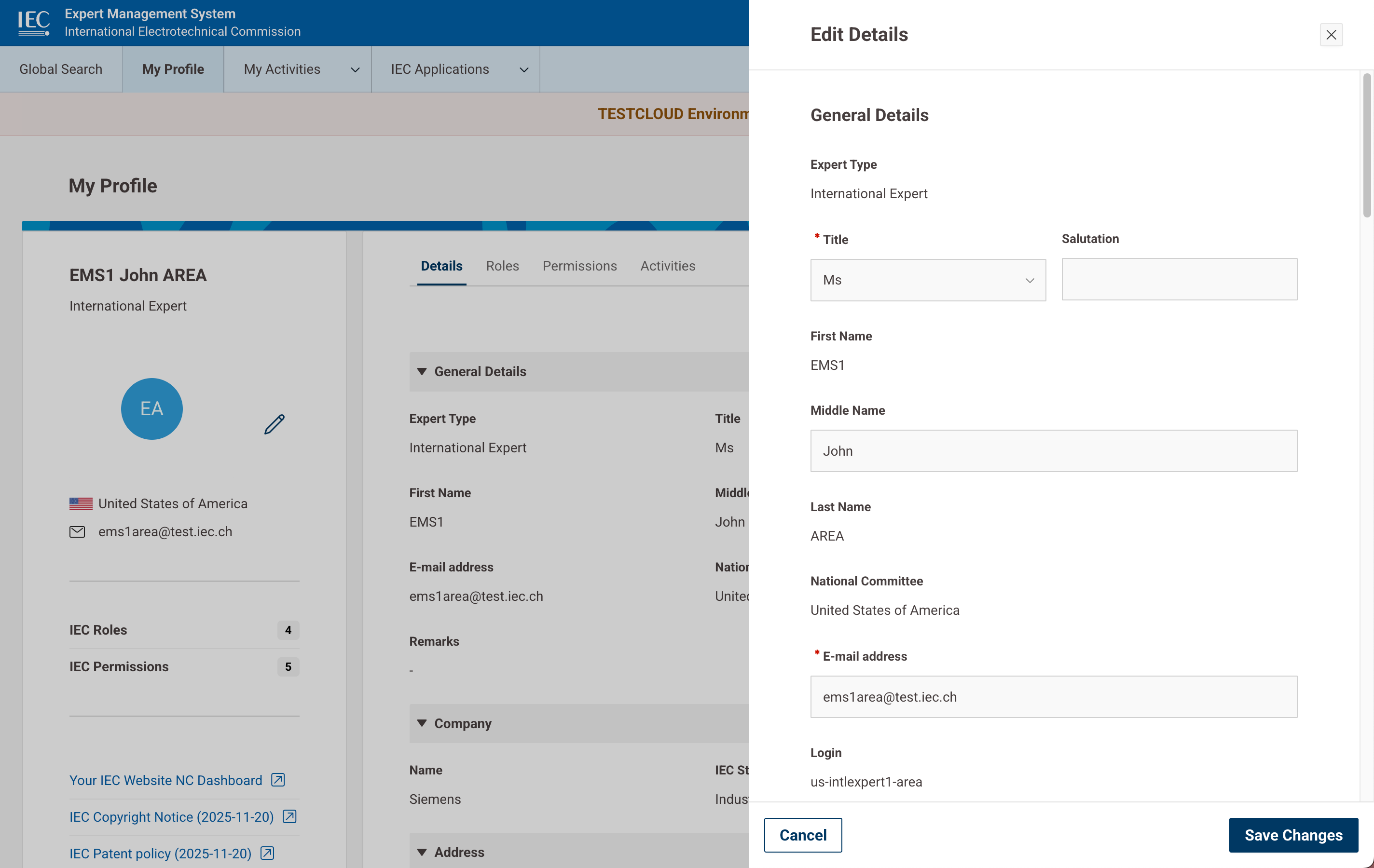
You can update selected personal information directly in the EMS My Profile page’s Details section.
Editable vs read-only fields
-
Some fields are editable (e.g. middle name, contact details)
-
Some fields are read-only (e.g. first name, last name) to ensure consistency across IEC systems
-
Mandatory fields are clearly marked.
Changes are validated before being saved.
If required information is missing, a validation message is displayed.
Completing the Stakeholder Category field
IEC uses categories for purposes such as tracking the balance of stakeholders involved in standardization and conformity assessment work. These categories are explained in the table below:
|
Category |
Title |
Typically including: |
|
A |
Industry, Commerce & Finance |
Manufacturers; producers; designers; service industries; distribution, warehousing and transport undertakings; utility; retailers; insurers; banks and financial institutions; business and trade associations; consultants who are engaged by the above parties; and users, who are individuals involved in using the type of product or system that is the topic of the technical committees, but who are not involved with the production, manufacture or distribution of that type of product or system. |
|
B |
Government |
International and regional treaty organizations and agencies; national government and local government departments and agencies, and all bodies that have a legally recognised regulatory function. |
|
C |
Consumers |
National, regional and international consumer
|
|
D |
Labour |
International, regional, national and local trades unions and federations of trades unions and similar bodies the main purpose of which is to promote or safeguard the collective interests of employees in respect of their relationship with their employers. This does not include professional associations. |
|
E |
Academic and research bodies |
Universities and other higher educational bodies or professional educators associated with them; research institutions. |
|
F |
Independent testing/ certification/accreditation bodies |
Testing, certification and accreditation bodies; organizations primarily devoted to assessing the use of standards. This category does not include non-independent testing, certification, or accreditation bodies, such as a laboratory that is a subsidiary of a manufacturer. |
|
G |
Non-governmental organization (NGO) |
Organizations that usually operate on a charitable, not-for-profit or non-profit distributing basis and that have a public interest objective related to social or environmental concerns. This category does not include political parties or other bodies whose main purpose is to achieve representation in government or governmental bodies; This category does not include standard bodies but includes other professional bodies that do not fit other categories. |
|
H |
Standards body |
Standardizing body recognized at national, regional or international level, that has as a principal function, by virtue of its statutes, the preparation, approval or adoption of standards that are made available to the public. |
📸 Updating your personal profile
🎥 Updating your personal profile
4 Managing your password and authentication (MFA)
Security-related actions are managed via the IEC Account Portal.
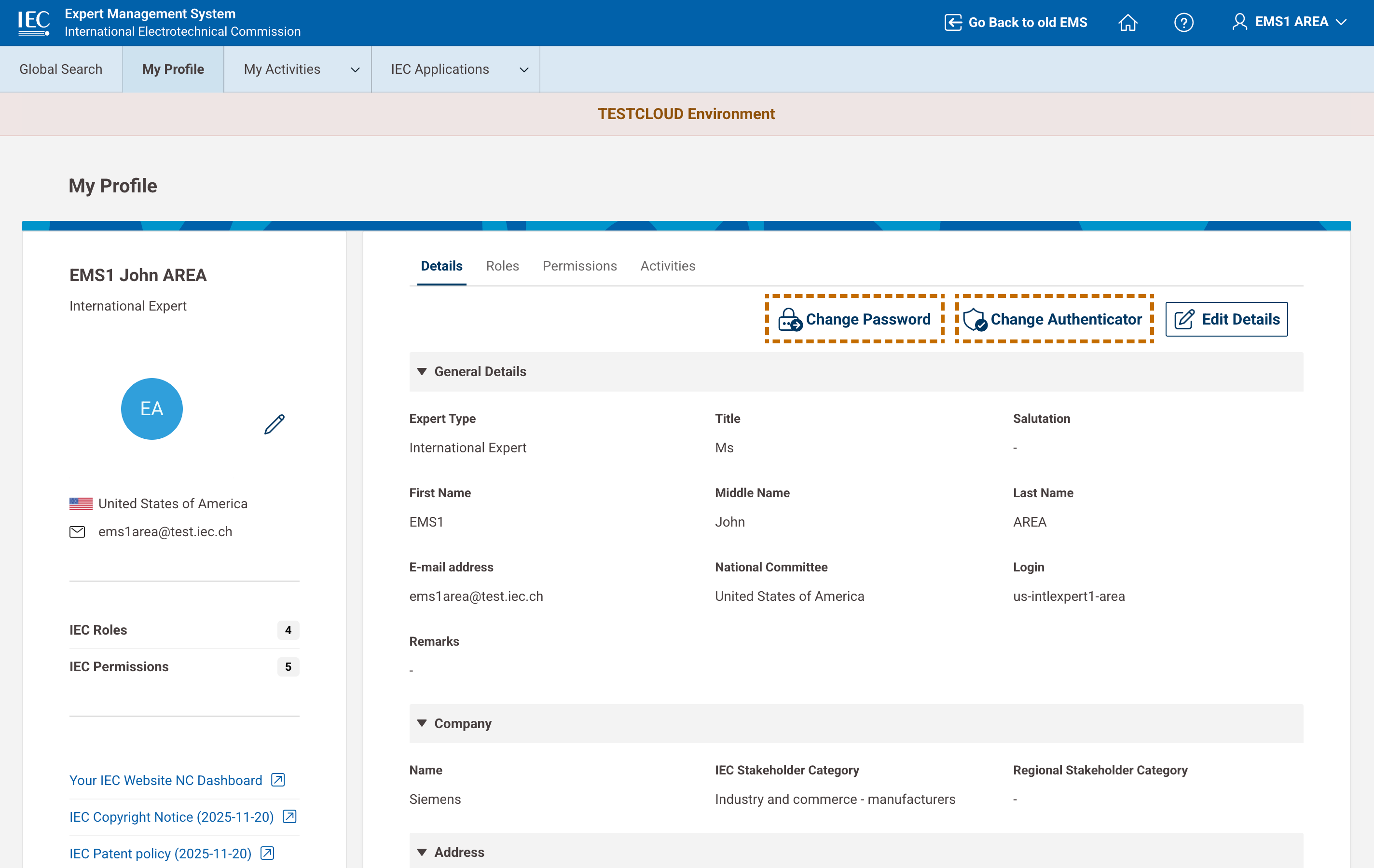
From your profile, you can:
-
change your password
-
change your authentication method (MFA)
When selecting these options, you are redirected to the Account Portal to complete the process securely.
📸 Managing password and MFA
🎥 Managing password and MFA
5 Viewing your roles and permissions
EMS allows you to view:
-
your assigned roles (IEC, CENELEC, NC Mirror, etc.)
-
your associated permissions.
This information helps you understand:
-
your responsibilities
-
your access scope within IEC systems.
📸 Viewing roles
📸 Viewing permissions
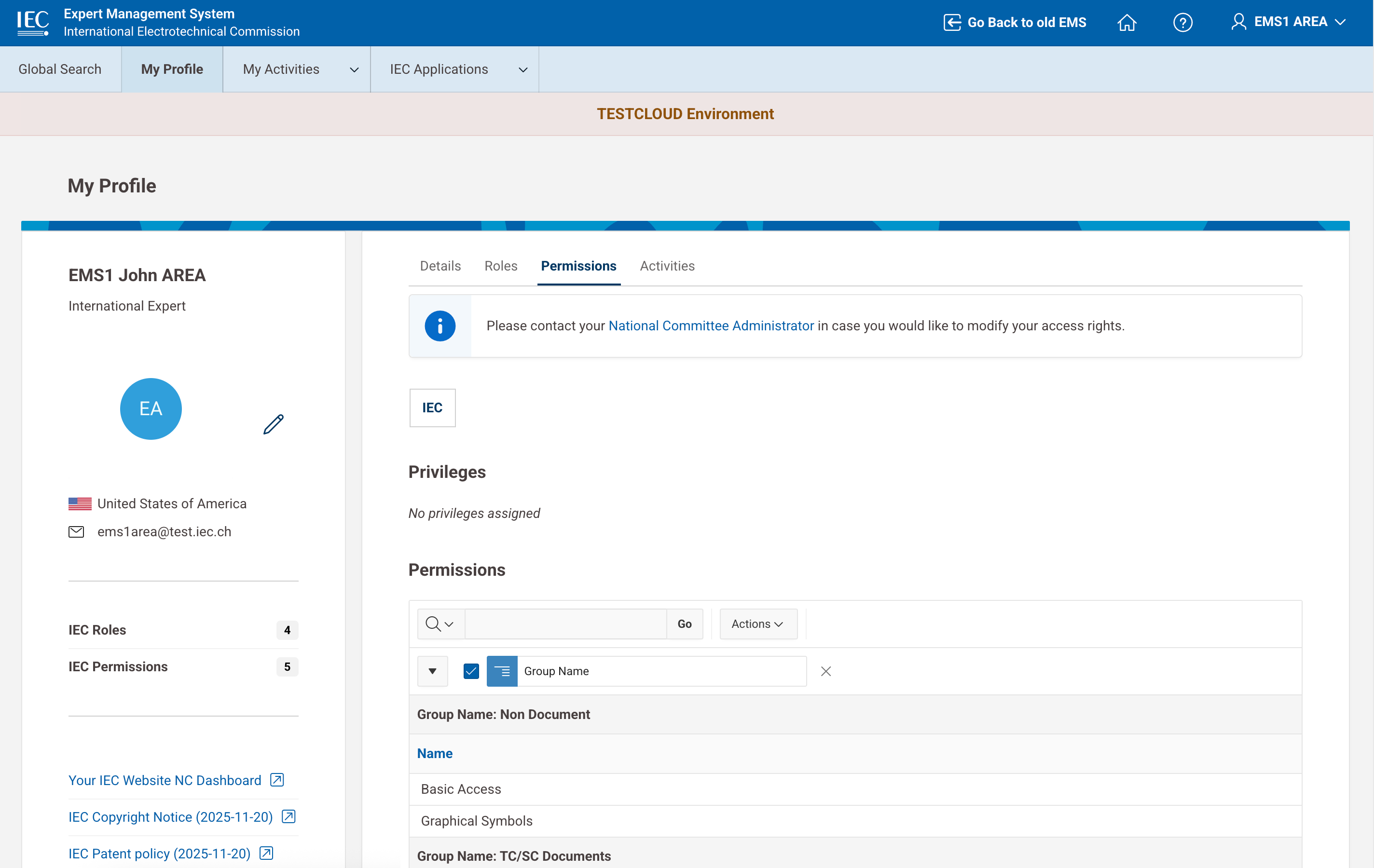
🎥 Viewing roles and permissions
6 Accessing meetings and training
Meetings
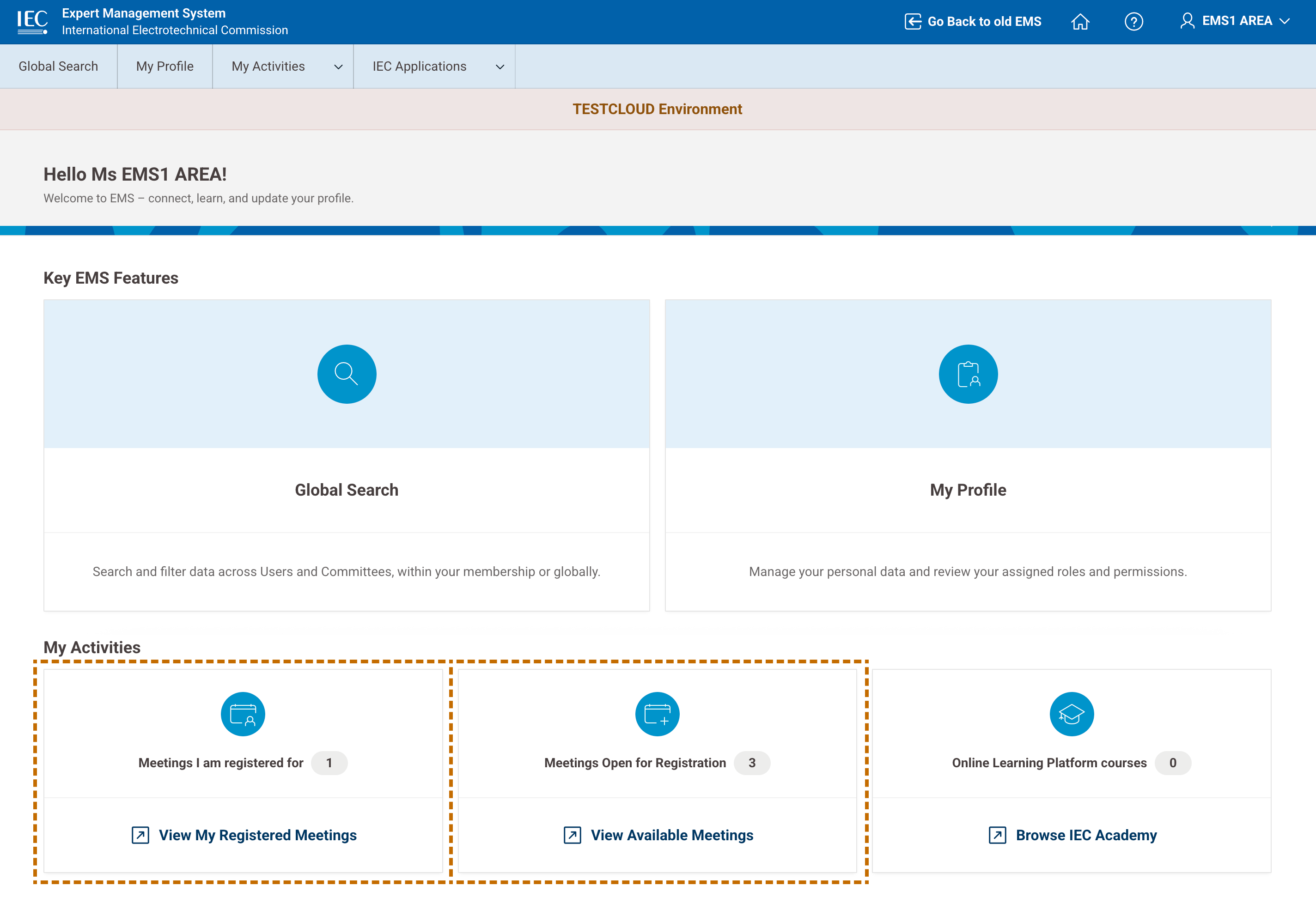
From the My Activities section on the landing page, you can:
-
view meetings you are registered for
-
see meetings open for registration.
When selecting a meeting, you may be redirected to the IEC Meeting Registration System.
📸 Meetings Cards
Training
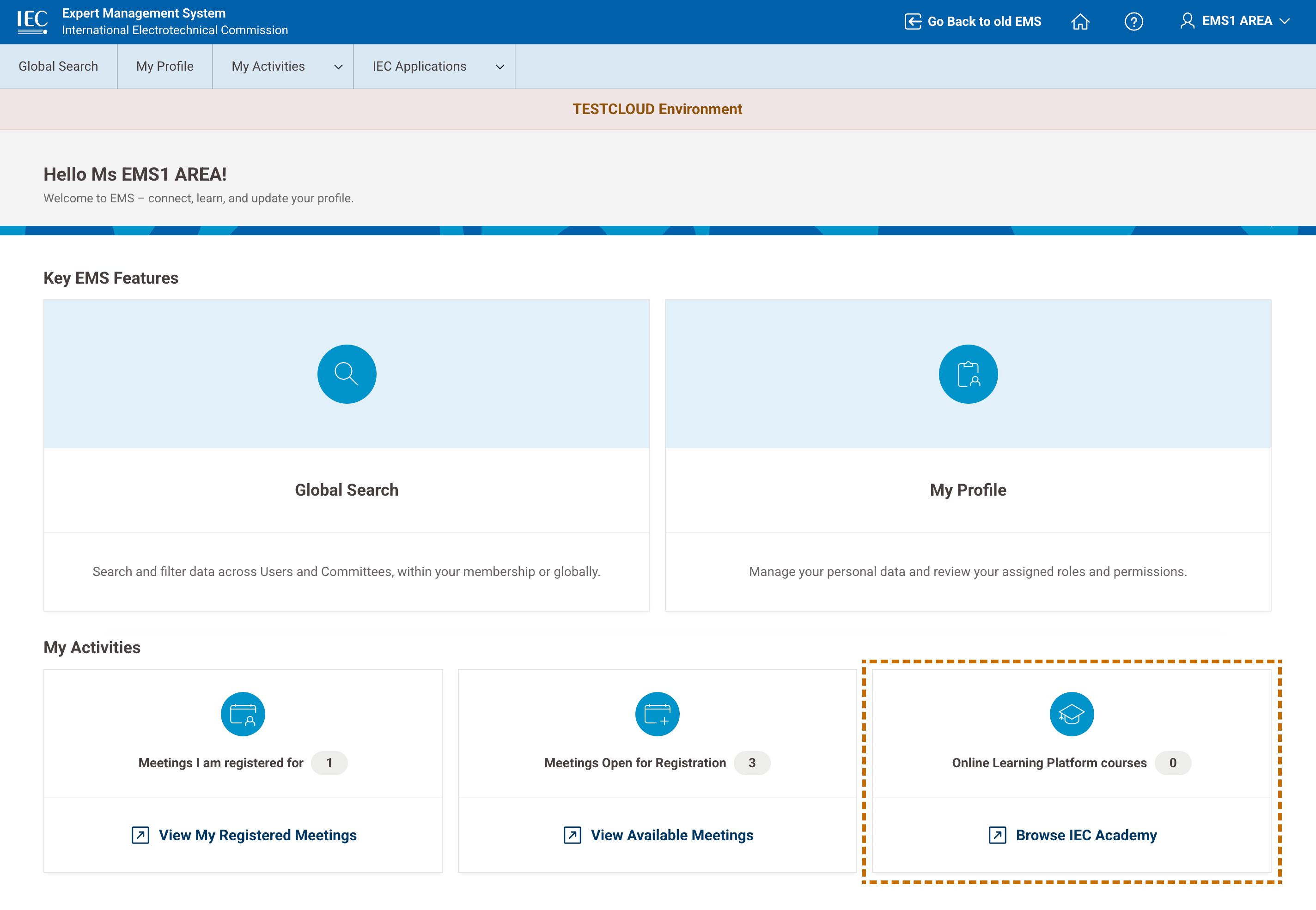
You can also access your training information:
-
view IEC Academy courses
-
browse available courses if none are currently assigned.
You will be redirected to the IEC Academy Online Learning Platform when accessing course details.
📸 Courses card
🎥 Accessing meetings and training
7 Exploring committees and participants
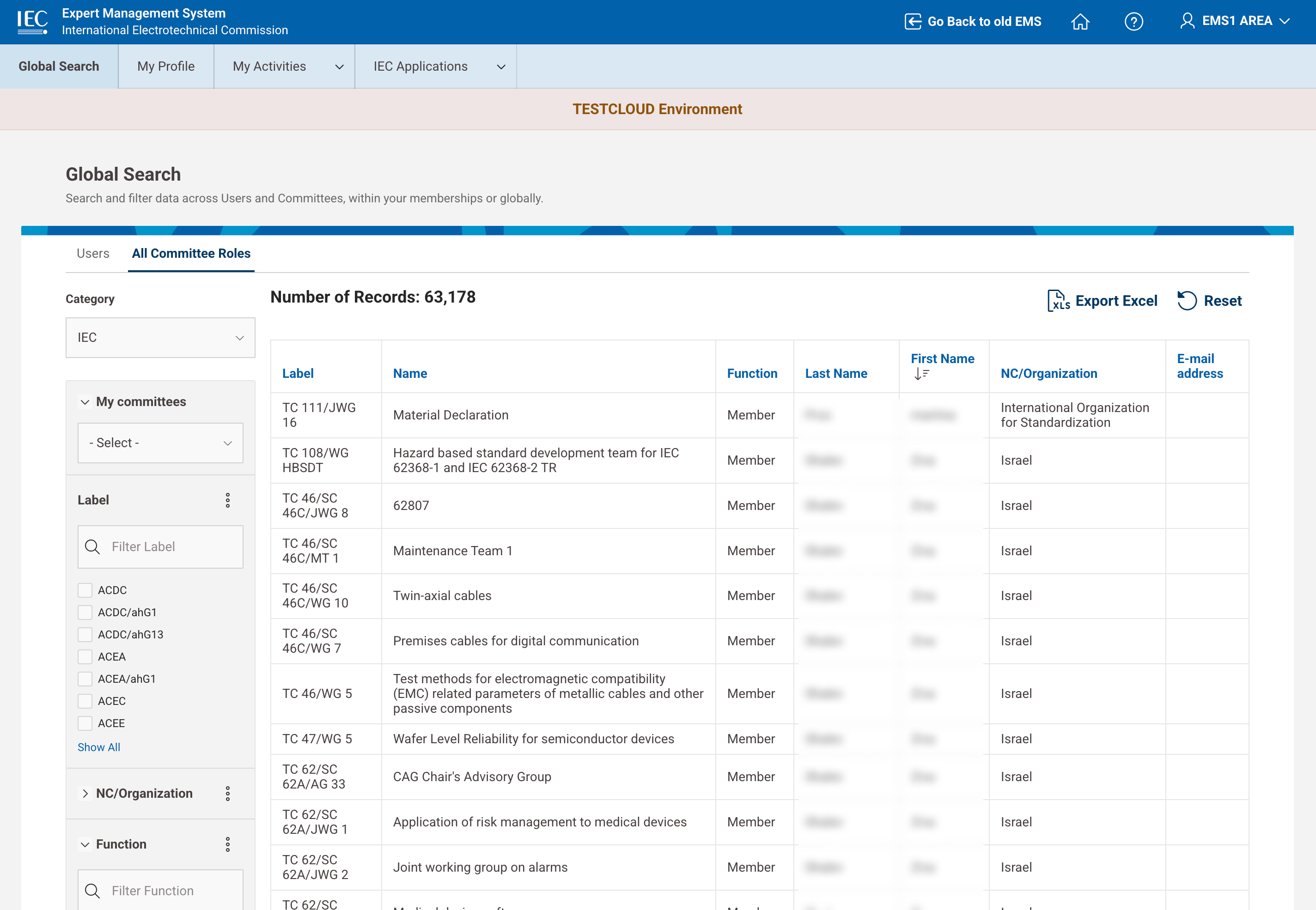
EMS provides access to committee-related information through Global Search.
Depending on your access rights, you can:
-
view committee roles and participants
-
filter by committee category (IEC, NC Mirror, etc.)
-
access limited profile information to support collaboration
📸 Global Search for All Committee Roles
🎥 Exploring committees and roles