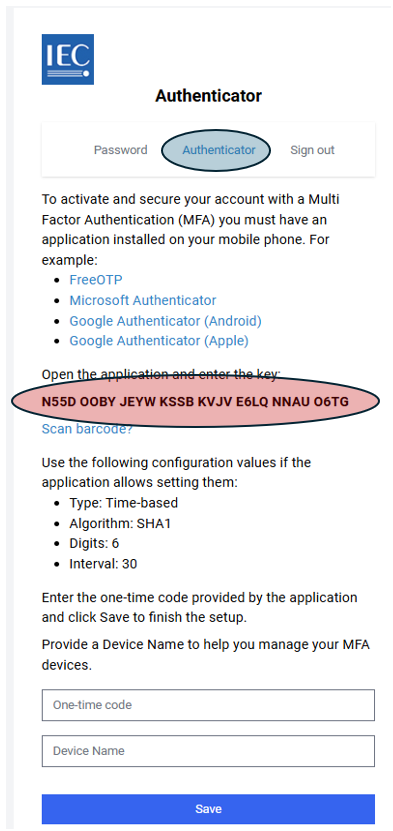
This article provides step-by-step instructions for configuring the Authenticator (Multi-Factor Authentication) method on your profile, ensuring more secure access to IEC applications.
you need your smartphone with the Microsoft Authenticator app started.
📘 Instructions
Step 1- setup your EMS account
-
Log in Expert Management System
-
My personal details
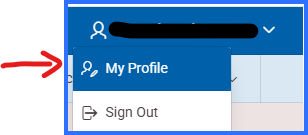
-
Click on Change Authenticator button

-
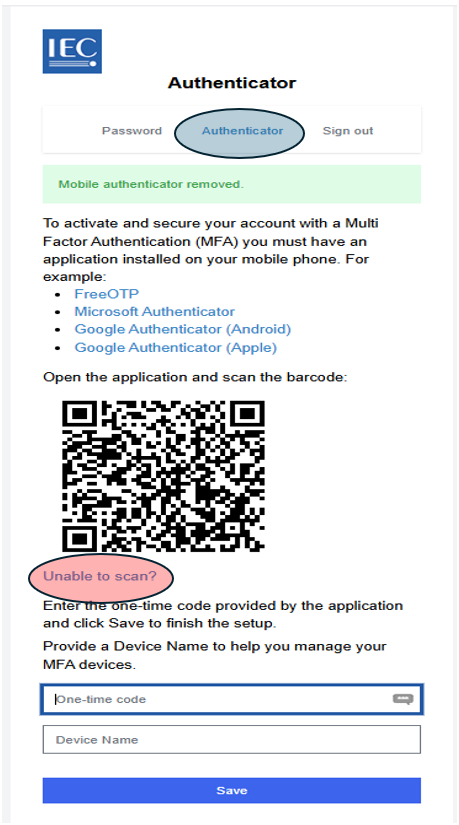
the following dialog box pops-up
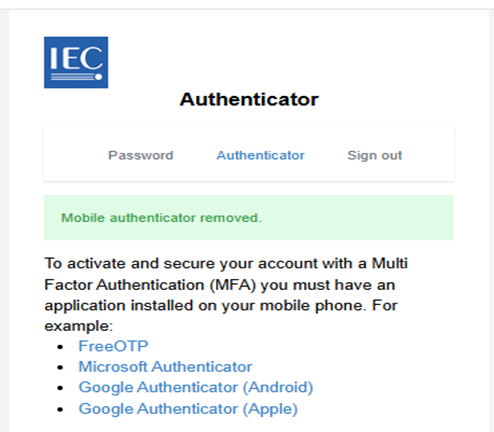
Step 2- setup your Authenticator app (smartphone)
-
Open your Microsoft Authenticator app
-
Scan the QRcode
If you cannot scan the QRcode, go below to the section ‘Cannot scan a QRcode’ -
When done, go back to your computer to finalize your EMS account
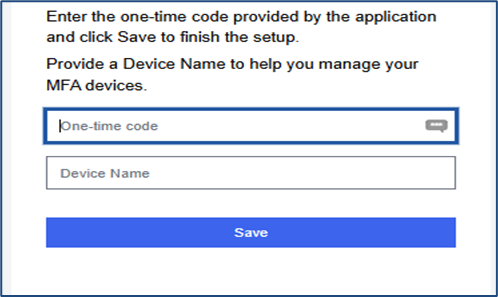
Step 3- finalize your EMS account
One-time code code provided by the Authenticator app
Device Name enter your smartphone name
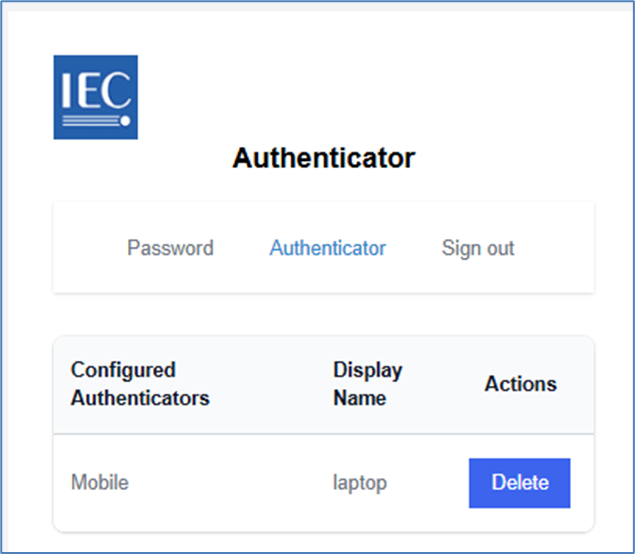
Cannot scan a QR code
-
click on the “text” encircled in red
-
enter into your smartphone the code revealed (encircled in red)