
User Guide : Regional_Entities_User_Guide.pdf
Regional Entities manages who can access the IEC Collaboration Platform (CP) for regional entities that are not managed in the Expert Management System (EMS).
It covers three regional entities:
With it, each entity’s administrators can:
-
maintain the entity’s member countries
-
create the entity’s committees, which appear automatically as CP workspaces
-
grant users permissions on those committees, which give the matching access in CP
-
grant administrator privileges for CP and Regional Entities
Access and roles
Open https://regionalentities.iec.ch and sign in with your IEC account (IEC SSO).
|
Role |
Menu available |
|
Regional entity administrator |
Home, Members, Persons, Committees, Administrators |
|
IEC administrator |
The above, plus Change organization, Organizations, Committee type dependency |
Three rules apply to regional entity administrators:
-
You can only grant rights to users who belong to one of your entity’s member countries, meaning users of IEC National Committees or IEC Affiliates.
-
You can grant and remove rights, but you can’t change users’ personal information. IEC maintains it.
-
Changes are saved only when you click Submit changes.
Home page
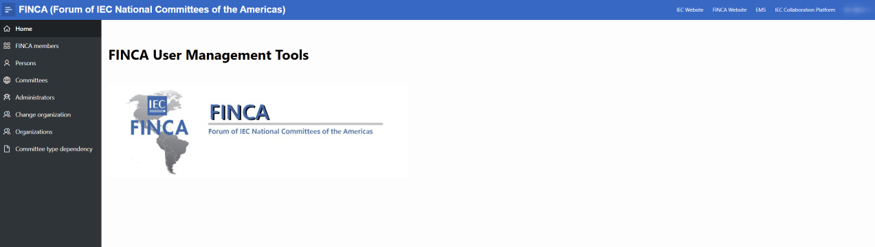
The home page shows which regional entity you are working on and links to the related IEC platforms.
|
Area |
What it shows |
|
Header |
Name of the regional entity, for example FINCA (Forum of IEC National Committees of the Americas) |
|
Quick links (top right) |
IEC Website, the entity’s website, EMS, IEC Collaboration Platform |
|
User menu (top right) |
Your IEC login (the user ID you signed in with) |
|
Left menu |
The screens described in this guide, labeled with the entity name (for example FINCA members) |
Members
Each regional entity maintains its list of member countries. That list decides which users you can grant rights to.
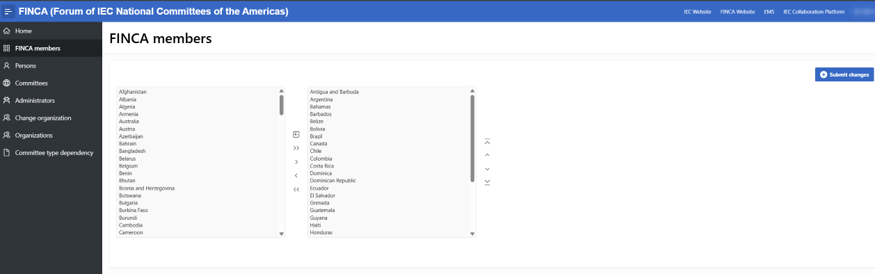
The screen has two lists. The left list holds all countries; the right list holds the entity’s members.
-
Open <Entity> members from the left menu.
-
Select one or more countries.
-
Move them with the buttons between the lists: > adds the selected countries, >> adds all, < removes the selected members, << removes all, and the top icon resets both lists.
-
Optionally, reorder members with the arrows on the right: top, up, down, bottom.
-
Click Submit changes.
Persons
Use Persons to find a user before managing their rights.
-
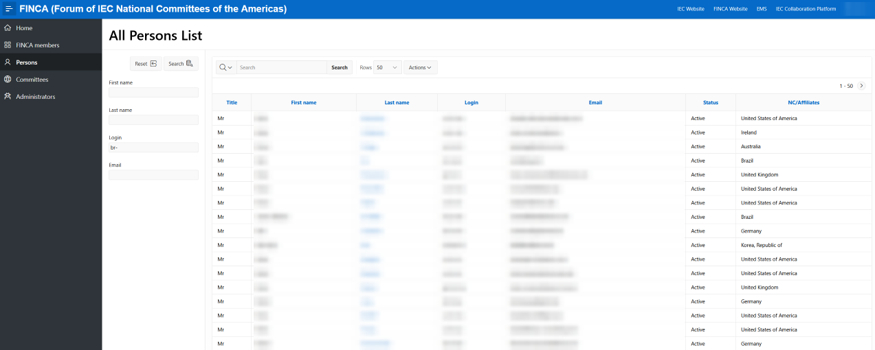
In the left panel, enter a First name, Last name, Login or Email. Partial values work, for example br- in Login.
-
Click Search. Click Reset to clear the filters.
-
In the results, click the person’s Last name to open their page.
The results show Title, First name, Last name, Login, Email, Status and NC/Affiliates. Use the toolbar to search within the results, change rows per page, or open Actions to filter, sort and download.
The last name is a link only when the person belongs to one of the entity’s member countries.
Person page
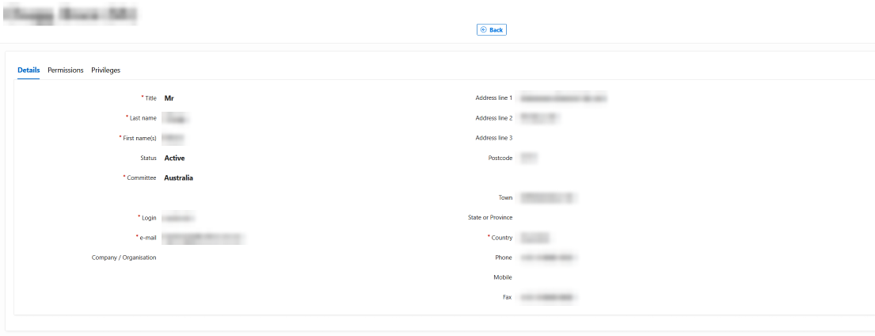
A person’s page has three tabs: Details, Permissions and Privileges. Click Back to return to the list.
Details
This tab is read-only. It shows the person’s identity (Title, Name, Status, Committee, Login, e-mail, Company) and contact details (address, Country, Phone, Mobile, Fax). Here, Committee means the person’s IEC National Committee or Affiliate.
Permissions
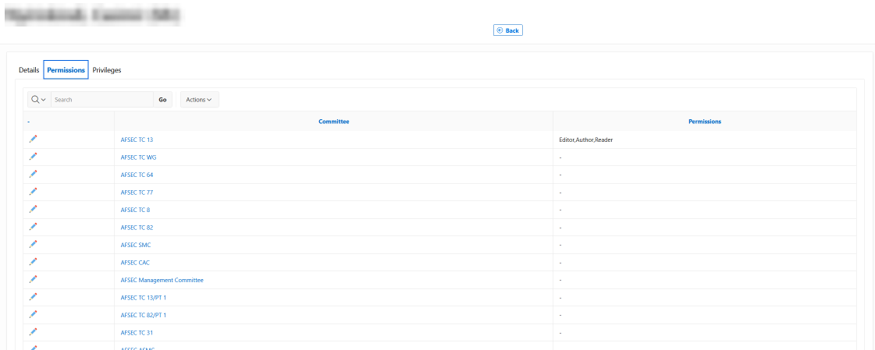
This tab lists every committee of the regional entity with the person’s permissions on it. A dash (-) means no permission.
-
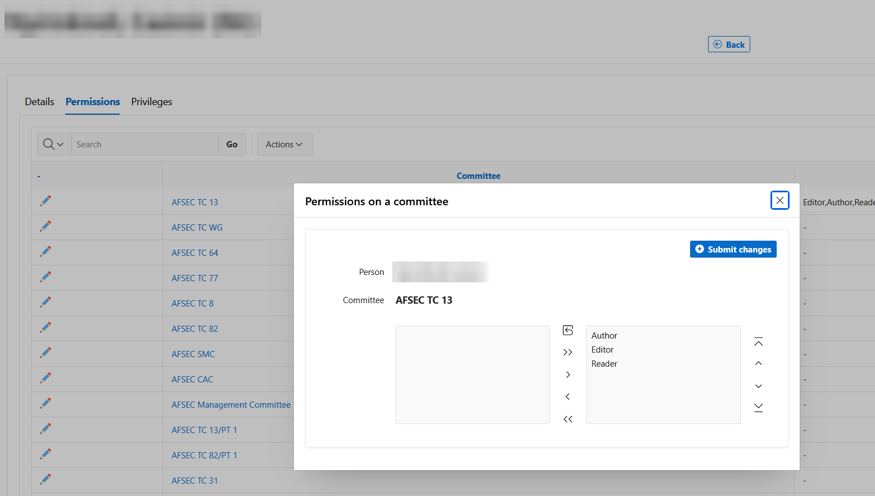
Click the pencil icon on the committee’s row.
-
In Permissions on a committee, move roles from the left list (available) to the right list (granted).
-
Click Submit changes.
|
Role |
Access in the CP workspace |
|
Reader |
Read the workspace content |
|
Author |
Add content and modify their own content |
|
Editor |
Add content and modify all content, including other members’ |
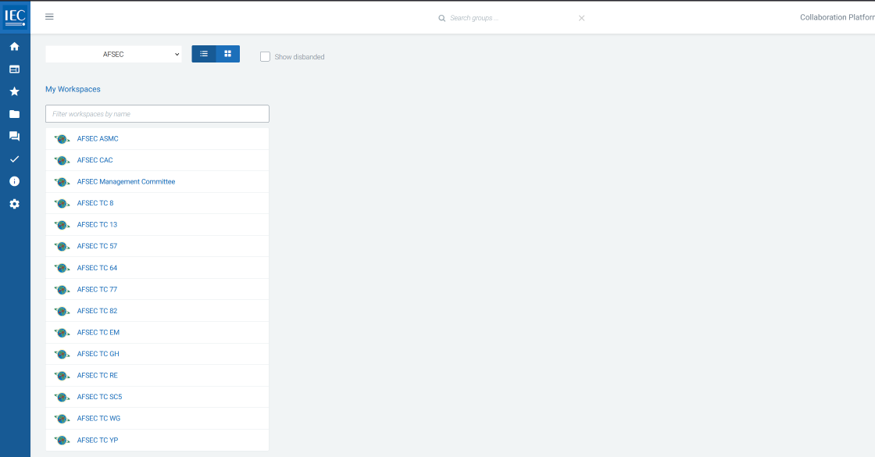
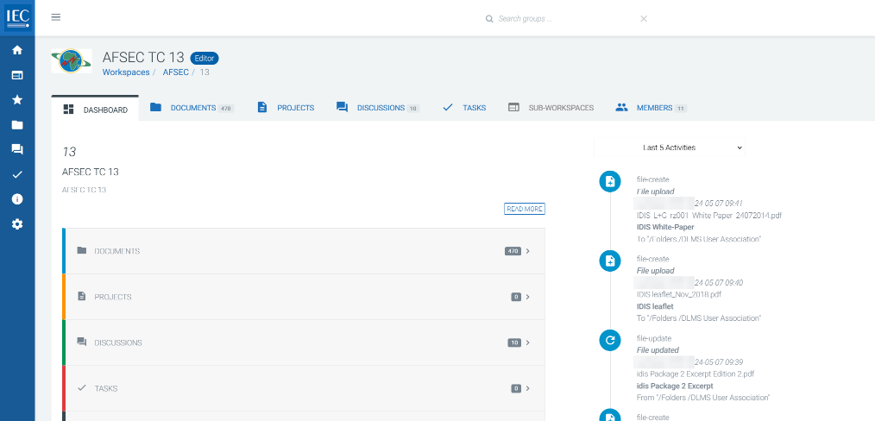
In CP, the committee then appears under My Workspaces, grouped by regional entity. The workspace header shows the person’s role, for example AFSEC TC 13 · Editor.
CP: My Workspaces for AFSEC
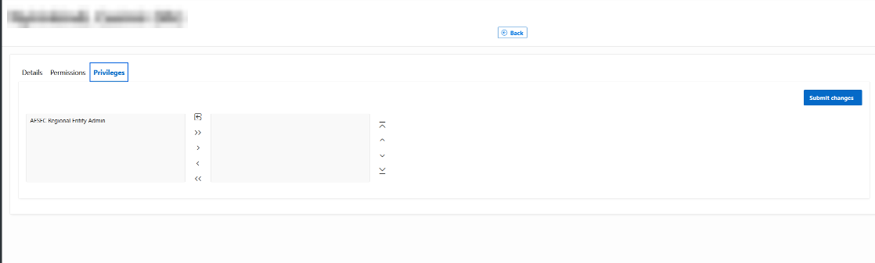
Privileges
This tab grants administrator rights for both CP and Regional Entities, for example AFSEC Regional Entity Admin.
-
Move the privilege to the right list.
-
Click Submit changes.
Committees
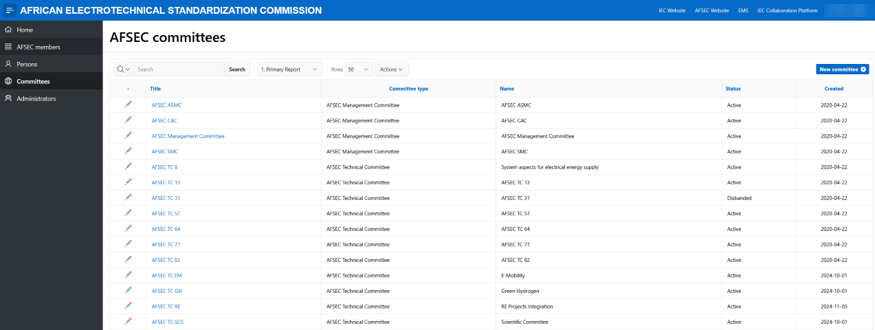
Committees created here appear automatically as workspaces in CP, where you can then grant access rights.
The list shows each committee’s Title, Committee type, Name, Status (Active or Disbanded) and Created date. Click a Title to open the committee, or the pencil icon to edit it.
Create a committee
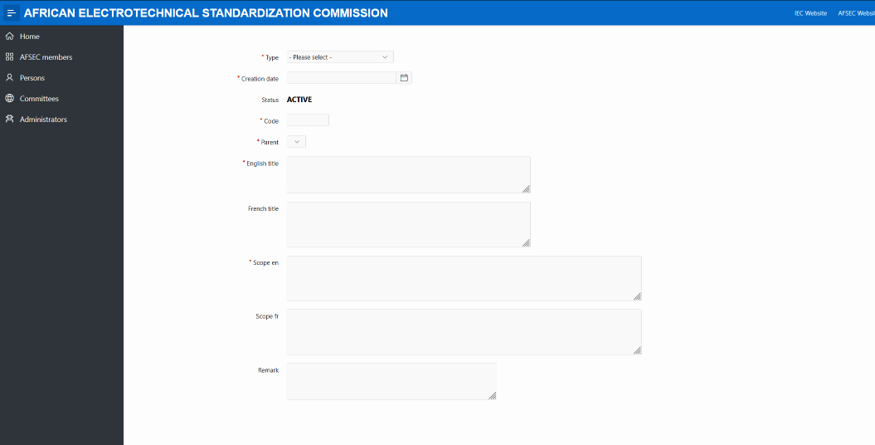
-
Click New committee.
-
Fill in the required fields: Type, Creation date, Code, Parent, English title and Scope en.
-
Optionally, add a French title, Scope fr and a Remark.
-
Save. The status is set to ACTIVE automatically.
Committee page
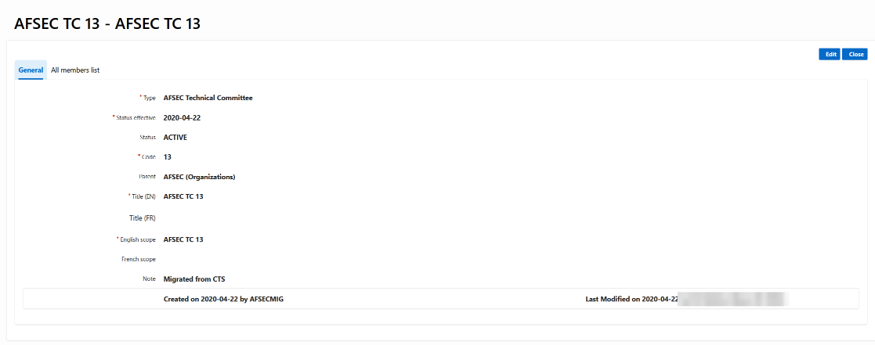
-
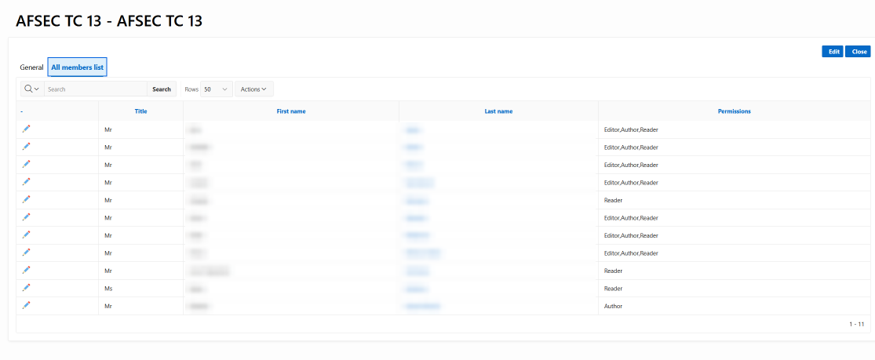
General: the committee’s details, plus who created and last modified it. Click Edit to change them, or Close to go back.
-
All members list: everyone with permissions on the committee. The pencil icon is a shortcut to change that person’s permissions without going through Persons.
Administrators
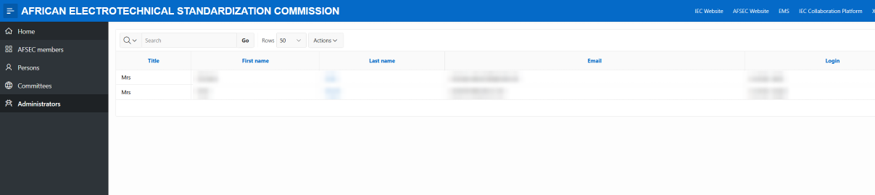
Administrators lists the users who hold the entity’s Regional Entity Admin privilege, with their Title, First name, Last name, Email and Login.
To add or remove an administrator, open the person’s page and change their Privileges tab. Clicking a last name in this list takes you there.
Quick reference
|
I want to… |
Go to |
|
Add or remove a member country |
Members, then Submit changes |
|
Give someone access to a committee workspace |
Persons, then the person, then Permissions, then the pencil icon |
|
Change the rights of someone already on a committee |
Committees, then the committee, then All members list, then the pencil icon |
|
Make someone an administrator |
Persons, then the person, then Privileges |
|
Create a new committee |
Committees, then New committee |
|
See who administers the entity |
Administrators |
FAQ
Why can’t I open a person’s page? They don’t belong to one of your entity’s member countries. Add the country under Members first, if appropriate.
Why can’t I edit a person’s name or email? Personal data is maintained by IEC. Contact IEC to have it corrected.
My change didn’t save. Check that you clicked Submit changes.
I granted a permission, but the person can't see it in IEC Collaboration Platform yet. Access rights are updated in CP once a day, at 3:00 AM (Geneva time). Changes made today appear in CP the next morning.
I created a committee, but its workspace isn't in CP yet. New committees are also added to CP during the daily update at 3:00 AM (Geneva time). The workspace appears the next morning.