Send document notifications
Locate the workspace and the folder with the document(s) you want to send a notification about.
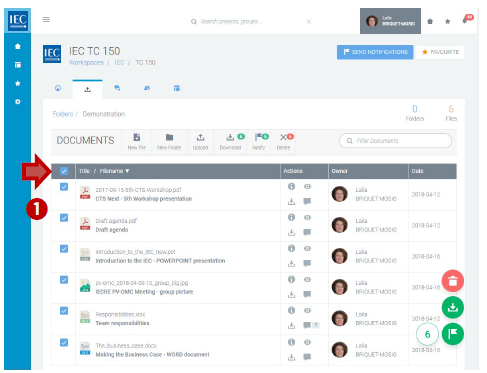
Click on the checkbox next to the file(s) you want to send a notification about.
Click the checkbox in the table header to select all files in a folder. Note: Subfolders will not be included.
In the toolbar press the Notify button.
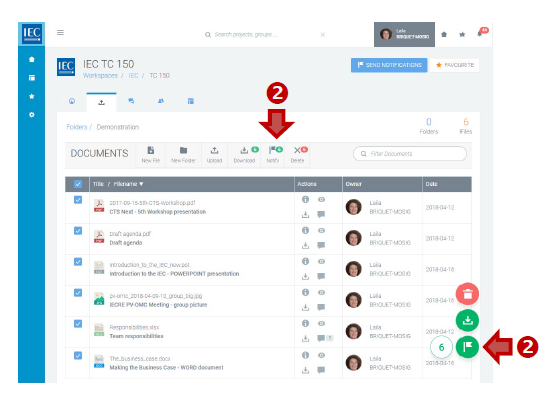
You can also use the NOTIFY circle button (with notification flag icon) which will appear in the bottom right of your screen.
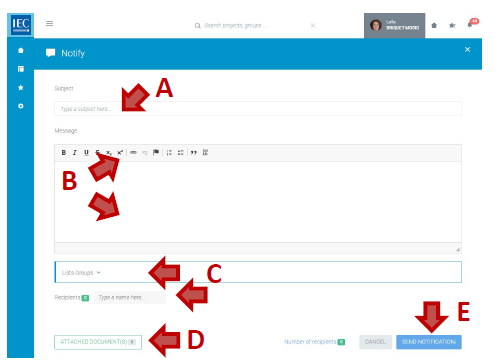
A. Enter a subject (required)
B. Enter a body text (required)
(use html formatting as appropriate)
C. Select a list group (and/or type a name) to create a list of notification recipients.
(a counter shows the number of recipients)
D. The documents you selected are already attached.
If needed, you can attach more documents using the Attach Documents button. (a counter shows the number of attachments).
E. Press the Send Notification button
(a counter shows the number of recipients).